
Download an encrypted backup
- 01
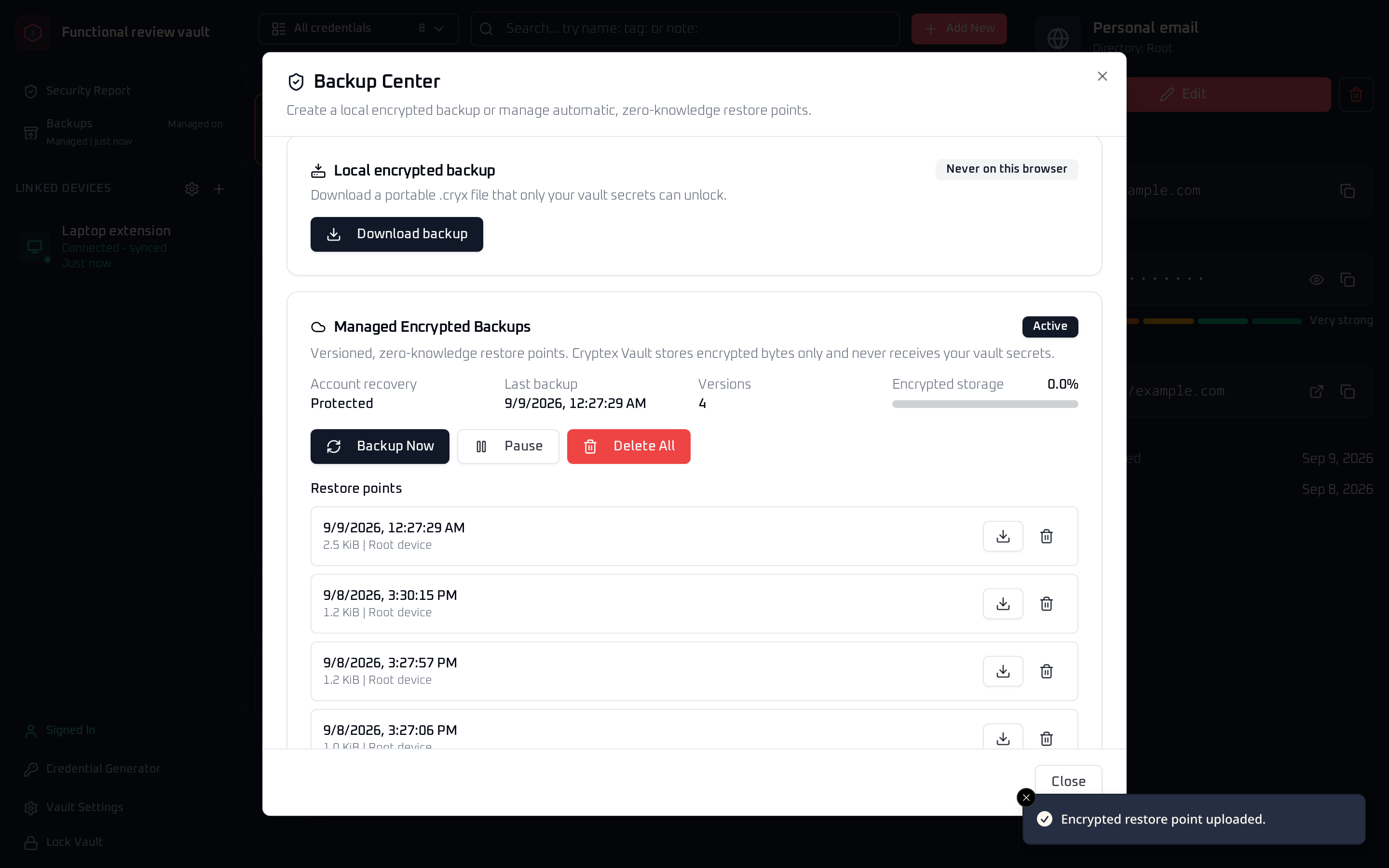
Unlock the web vault and open Backup Center from the sidebar.
- 02
Under Local encrypted backup, choose Download backup.
- 03
Move the downloaded
.cryxfile to a separate, secure location.
The file remains encrypted with the vault's protection. To unlock it, use either the vault recovery code, or the vault master password together with any required protection phrase or security key. A browser download receipt does not prove the file still exists, so check your storage yourself.
 View full size
 Restore a backup file
- 01
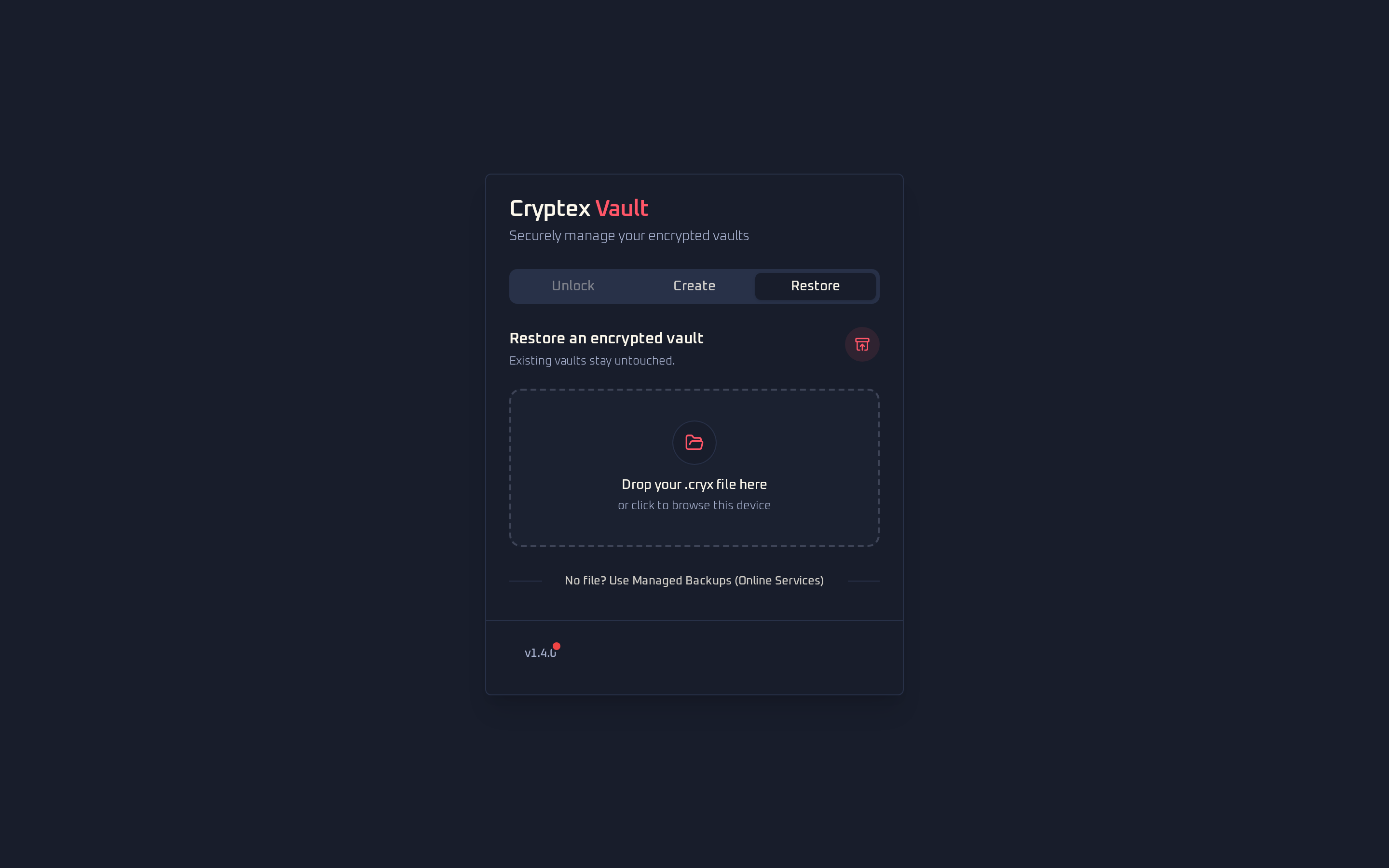
Open Cryptex Vault and select the Restore tab.
- 02
Drop the
.cryxfile in the file area, or choose it from the device. - 03
Give the restored copy a vault name and choose Restore Vault.
- 04
Go to Unlock, select the restored vault, and unlock it with the original vault secret.
Restore creates a separate local vault and does not overwrite an existing one. This makes it safe to test a backup before you depend on it.
 View full size
 Use managed restore points
Managed encrypted backups are an optional Online Services feature. Create the Online Services account and save its Recovery Kit first. In Backup Center, enable managed backups and confirm the prompt. The first upload starts immediately; later automatic backups run while the web vault is open and unlocked. Use Backup Now when you want a restore point immediately.
You can pause uploads without deleting existing history, or download a retained restore point as an encrypted file. Creating or rotating the Recovery Kit and some backup controls require a root device, a device with permission to manage your Online Services account.
Backups after security changes
Changing your master password, additional key protection, recovery code, or local encryption key does not update existing backups. Each older copy still uses the secrets that protected it when it was created. Download and test a fresh backup after changing these settings.
When managed backups are enabled, saving a security change queues a replacement backup immediately. An upload failure does not undo your local security change. Keep the app open and check that the replacement finishes.
Closing the app can interrupt the upload or cleanup. Check the result after reopening it; do not assume the old copies are gone. Downloaded .cryx files cannot be revoked or deleted remotely. Remove those copies yourself when you no longer need them.
Test before you need it
Restore the newest backup as a separate vault, unlock it, and inspect several recent entries. Keep the original until that test is complete. After material changes or a large import, download another backup rather than assuming an older copy is current.