
Keep both if you use Online Services
Vault recovery code
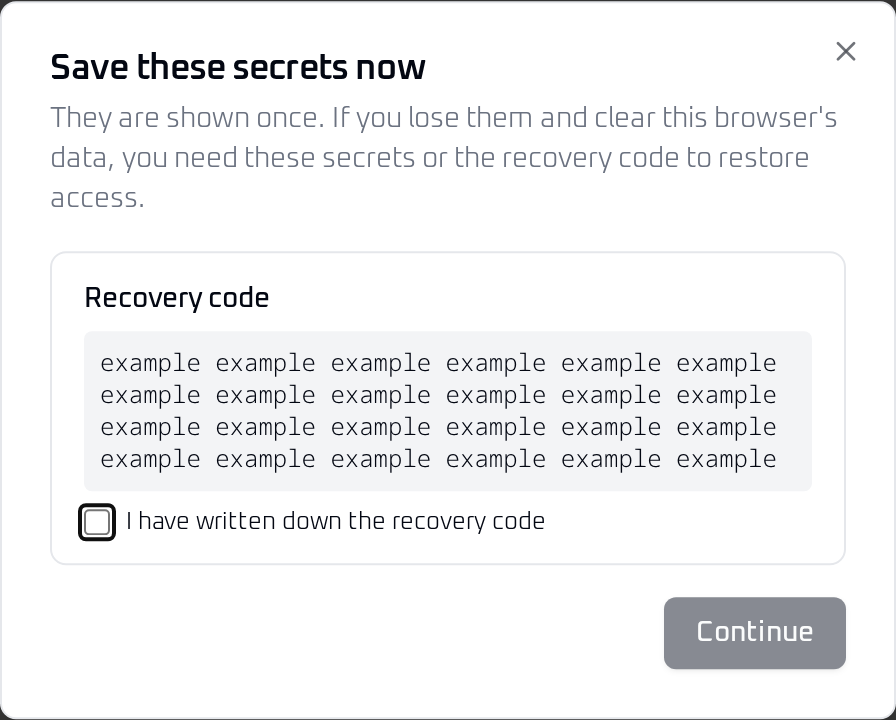
After you select Create Vault, the Save these secrets now dialog shows your new vault's recovery code before you enter the vault. It is shown once. It opens that encrypted vault when the master password or additional key is unavailable. You can replace it later in Vault Settings under Encryption & Security.
 View full size
 Online Services Recovery Kit
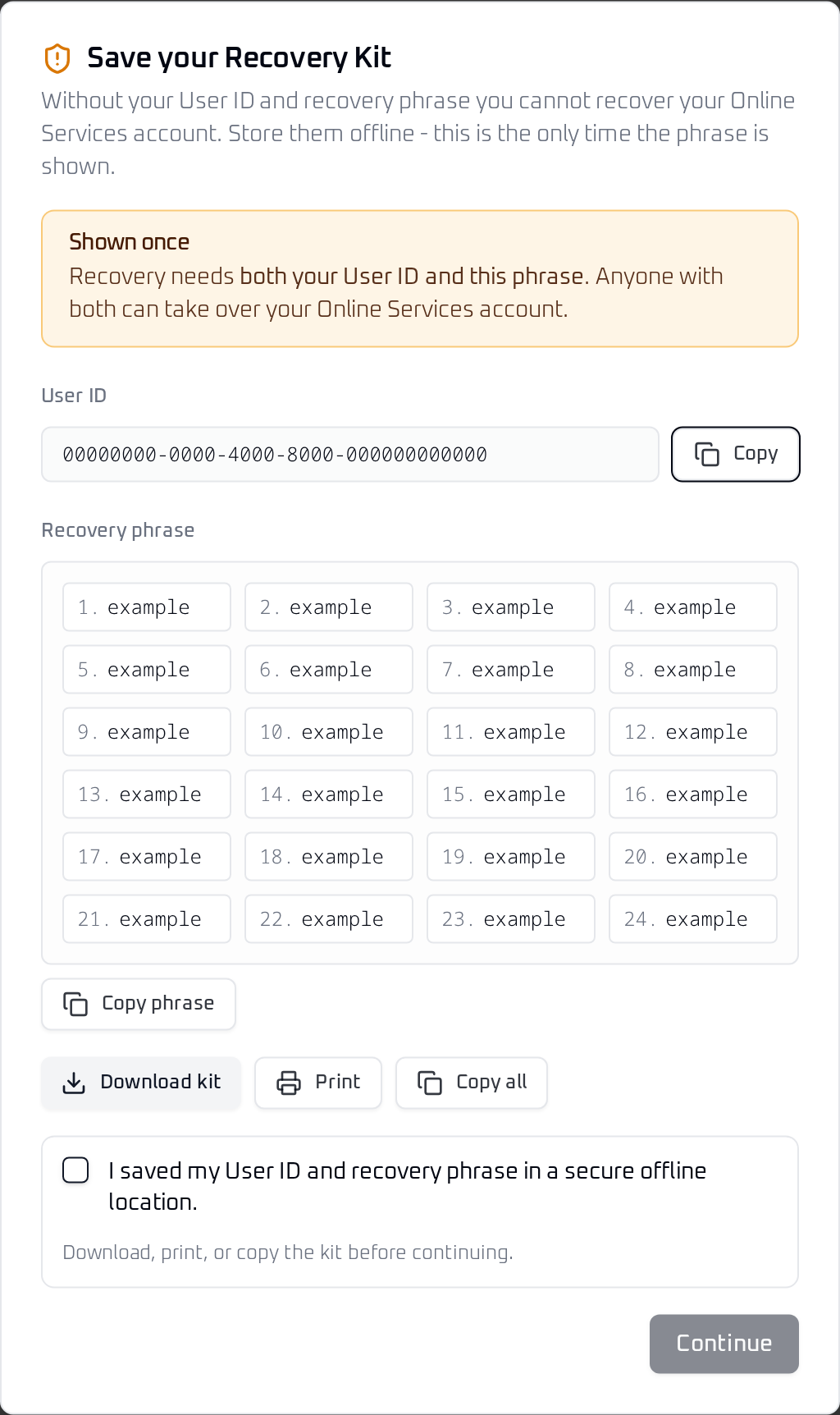
Contains the Online Services User ID and recovery phrase. It is created when you register an Online Services account. You can generate a replacement from the account's Security tab. Save the replacement Kit; the previous one will no longer work. It restores account control and can retrieve available encrypted backups from current root devices, the devices allowed to manage the account. It does not decrypt those backups.
 View full size
 Unlock with a vault recovery code
- 01
Open Cryptex Vault, choose the Unlock tab, and select the vault.
- 02
Choose Use recovery code.
- 03
Enter the code saved for this vault, then choose Unlock Vault.
- 04
In the unlocked web vault, open Vault Settings and choose Manage Encryption & Security.
- 05
Enter the same code under Recovery code to set a new master password. Enter and confirm your new master password, then choose Save protection settings.
Changing your master password this way does not replace the vault recovery code. Keep it safe. If the code may have been exposed, use your new master password to generate a new code in Encryption & Security, then save it offline before closing the dialog. The old code will no longer unlock this local vault, but older backups can still accept the code that protected them when they were created.
Security settings also offer Rotate this device's vault encryption key, off by default. If you choose it while setting the new password, the app re-encrypts this local vault and generates a new recovery code. Save the new code before closing the dialog. Rotation does not change the keys on linked devices. See backups after security changes for replacing older copies.
Recover an Online Services account
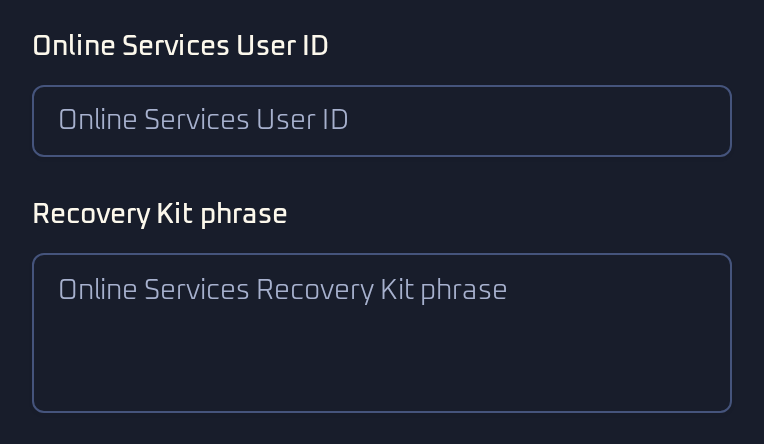
If a usable vault is already open, choose Sign up in the sidebar. In the Account dialog, select Recover account. Enter the User ID and Recovery Kit phrase, complete human verification, and submit. Recovery binds the current vault as a new Online Services device.
Successful account recovery uses up the Recovery Kit you entered. The app then requests a new Kit and shows it when ready. Save your User ID with the new phrase before relying on recovery again. If no new Kit appears, open Account and generate one from its Security tab.
You can also replace a Kit from Account > Security. This invalidates all earlier Kits and ends active backup recovery sessions. Replace your stored copies with the new Kit.
Recover from managed backup on a fresh device
- 01
Open the Restore tab and choose No file? Use Managed Backups (Online Services).
- 02
Enter the Online Services User ID and Recovery Kit phrase, then complete human verification.
- 03
Choose Find Root Restore Points, then select a restore point. The newest is marked recommended.
- 04
Name the restored copy and choose Restore Vault.
- 05
Unlock the restored vault with its vault master password and any required protection phrase or security key, or use its vault recovery code instead.
- 06
After the first unlock, save the replacement Online Services Recovery Kit when prompted. Keep it in place of the old one, then confirm that your credentials are present.
Finding an eligible root-device restore point uses up the Recovery Kit you entered. If none is available, the Kit remains valid. If the replacement does not appear after unlocking the restored vault, try again on the next unlock or generate one from Account > Security.
 View full size