
The vault will not unlock
- Confirm that the correct vault is selected. A browser can hold more than one local vault.
- Enter the master password created for this local copy. A linked extension can have a different passphrase from the web vault.
- If the vault requires a protection phrase, enter it in the separate field. A hardware-backed key must be available in a browser that supports the required WebAuthn feature.
- If the master password or additional key is unavailable, choose Use recovery code and enter the recovery code for this vault.
The import is empty or incomplete
- Choose the source and format that exactly match the export you made.
- Read the import warnings and the Skipped count before confirming.
- Export again from the source application if it produced a protected or malformed file. Cryptex Vault accepts the formats listed in the import guide.
- If you retry an import, check the vault first. Importing the same file again can add duplicate credentials.
Browser extension autofill does not appear
- Open the toolbar popup and unlock the extension vault.
- Open the credential and check that its saved URL matches the page you are visiting.
- Reload the page after installing or updating the extension.
- Some unusual, embedded, or cross-frame forms may not show an inline icon. Open the extension popup and copy the field you need.
The extension locks after 30 minutes of system idle. Closing the popup alone does not immediately lock it.
A device will not link or sync
- Keep both devices online with their vaults unlocked. During linking, leave the invitation screens open. Keep the extension popup open during synchronization.
- Start over with a fresh invitation if the QR code, file, or verification words came from an earlier attempt.
- If the camera is unavailable, paste the QR payload or use the link file method.
- If a direct connection fails, check whether the selected signaling and relay service is reachable. Online Services access also requires an active eligible plan; self-hosted users should check their signaling, STUN, and TURN configuration. Signaling can connect successfully while the device connection fails if no direct route is available and the TURN relay cannot be reached.
- A web-app tab can synchronize in the background while both devices are online and unlocked. If one device is offline, sync waits until it is available again.
Use the linking progress details to identify whether the failure happened while joining signaling, finding the other device, building the private connection, or transferring the vault. You can also open Vault Settings, then Developer Tools and Open Log Inspector to check recent errors.
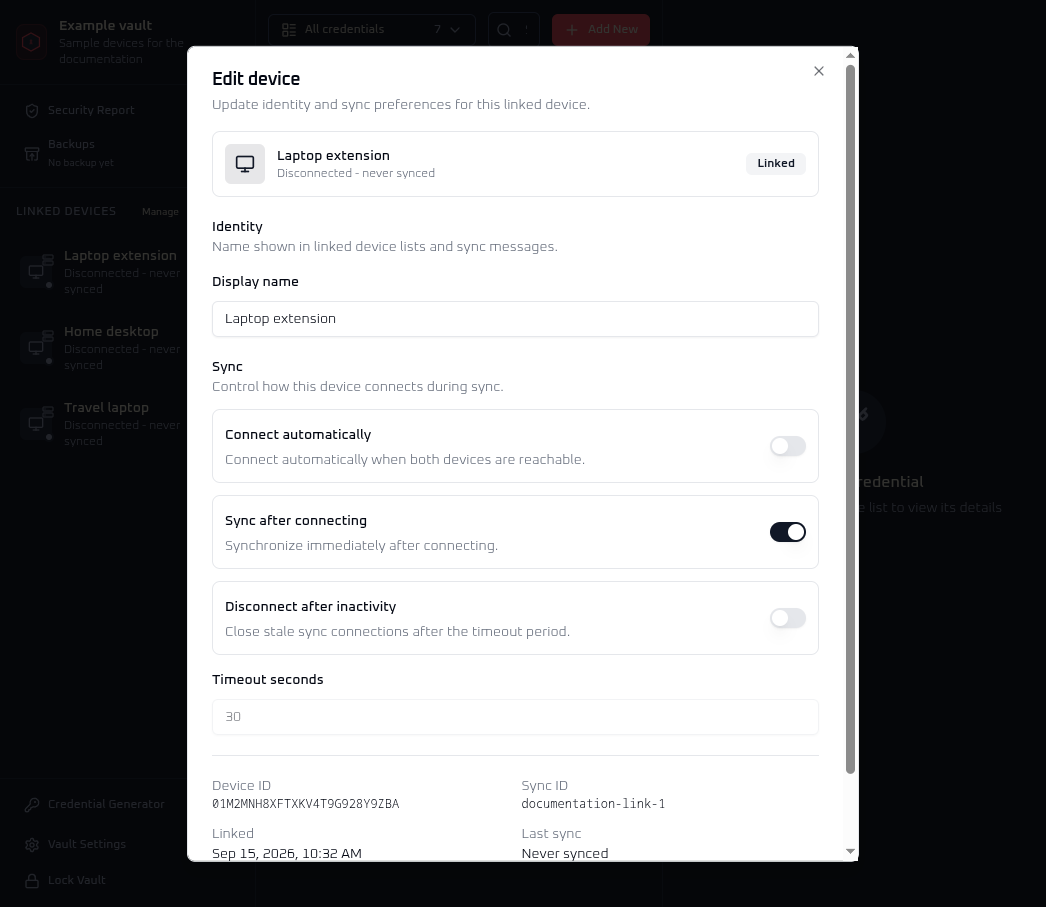
Choose Manage beside Linked Devices, then select the device. New links are set to connect and sync automatically when both vaults are available. Ready to connect means signaling is available, but the device connection is not yet active. With automatic connection on, you do not need to press Connect. If the status does not change, check that the other vault is online and unlocked, then review the connection logs. Use Connect if automatic connection is off or you want to retry manually. Once connected, sync starts automatically if Sync after connecting is on; otherwise, choose Sync now. Check that Last successful sync updates to confirm it finished.
To review the automatic settings, open the three-dot menu for that device in the Linked Devices sidebar, or press and hold its row on a touch screen. Choose Edit name and sync settings. The animated line on the Devices map shows an active connection, not a completed sync.
 View full size
 The sync finishes but a change is missing
Check which device holds the change. Syncing A with C cannot retrieve an edit that exists only on B. Bring B online and sync it with the other devices. If the same item was edited on both devices, compare their saved values and check the conflict-resolution rules. A higher version or, for equal versions, a later edit can take precedence.
A deleted item returns
Bring the device where you deleted the item online and sync it with each remaining device. This passes the deletion to those copies. If the item was imported again, it may be a separate record; check for duplicates before deleting it.
A backup will not restore
- If the file picker rejects your backup, check that you selected the original
.cryxfile, not a JSON export or a renamed file. If you have another copy, try that one. - If restoration finishes but the vault will not unlock, select the restored copy on the Unlock tab. Use the secrets that protected that backup when it was made. Later changes to the original vault do not change older backups.
- If managed recovery shows no root-device restore points, check whether managed backups were enabled and a root device uploaded a backup. The Online Services Recovery Kit retrieves eligible backups; it cannot create one.
- If one managed restore point fails an availability or integrity check, try another retained point and note which one failed before asking for help.
For the full restore procedure and recovery secrets, see the backup guide and recovery guide.
Get help without sending secrets
For general questions and troubleshooting, start a thread in GitHub Discussions. For a private issue, email [email protected] instead. Include where the error occurred, your browser version, and the exact error text. Never share a master password, vault recovery code, protection phrase, Online Services Recovery Kit, exported password file, or decrypted credential.