
How it works
cryptex-agent is an SSH agent for Linux that holds no private keys. When ssh, git or ssh-keygen asks it to sign, it sends the request to the device you paired it with: the Android app or the web app. You approve there, your vault signs, and only the signature goes back to the machine.
The private key never reaches the Linux machine, so malware on that machine can't copy it. The worst it can do is ask for a signature, and you see each request with the server, the program and the key before anything is signed.
Requests travel through a relay, either the hosted one that comes with Online Services or one you run yourself. They are end-to-end encrypted between the agent and your device. The relay sees which agent talks to which device, when and how much, and nothing else.
You need an SSH key item in your vault, and the agent needs a Linux machine with systemd. Release builds exist for amd64 and arm64.
Install the agent
Download a release tarball from the GitHub releases. Agent releases are tagged cryptex-agent-v followed by the version. An AUR package for Arch Linux, cryptex-agent-bin, will follow.
# The version you picked on the releases page, and amd64 or arm64
VERSION=REPLACE_WITH_VERSION
ARCH=amd64
NAME=cryptex-agent-$VERSION-linux-$ARCH
BASE=https://github.com/CryptexIndustries/vault-web/releases/download/cryptex-agent-v$VERSION
curl --fail --location --remote-name "$BASE/$NAME.tar.gz"
curl --fail --location --remote-name "$BASE/sha256sums.txt"
# Stop here unless this prints OK
sha256sum --check --ignore-missing sha256sums.txt
tar -xzf "$NAME.tar.gz"
sudo install -Dm755 "$NAME/cryptex-agent" /usr/bin/cryptex-agent
sudo install -Dm644 "$NAME/cryptex-agent.service" /usr/lib/systemd/user/cryptex-agent.serviceTo install without root, copy the binary to ~/.local/bin and the unit file to ~/.config/systemd/user/, then change the unit's ExecStart= line to %h/.local/bin/cryptex-agent run.
Pair it with your vault
Pairing tells the agent which device approves its requests and which keys it may ask for. Run this on the Linux machine:
cryptex-agent pairIt prints a QR code and, under it, a text code starting with cryptex-pair:. The code works for three minutes. If it expires, press Enter in the terminal for a new one. On a light terminal background, use cryptex-agent pair --invert so the QR code scans.
With the Android app
- 01
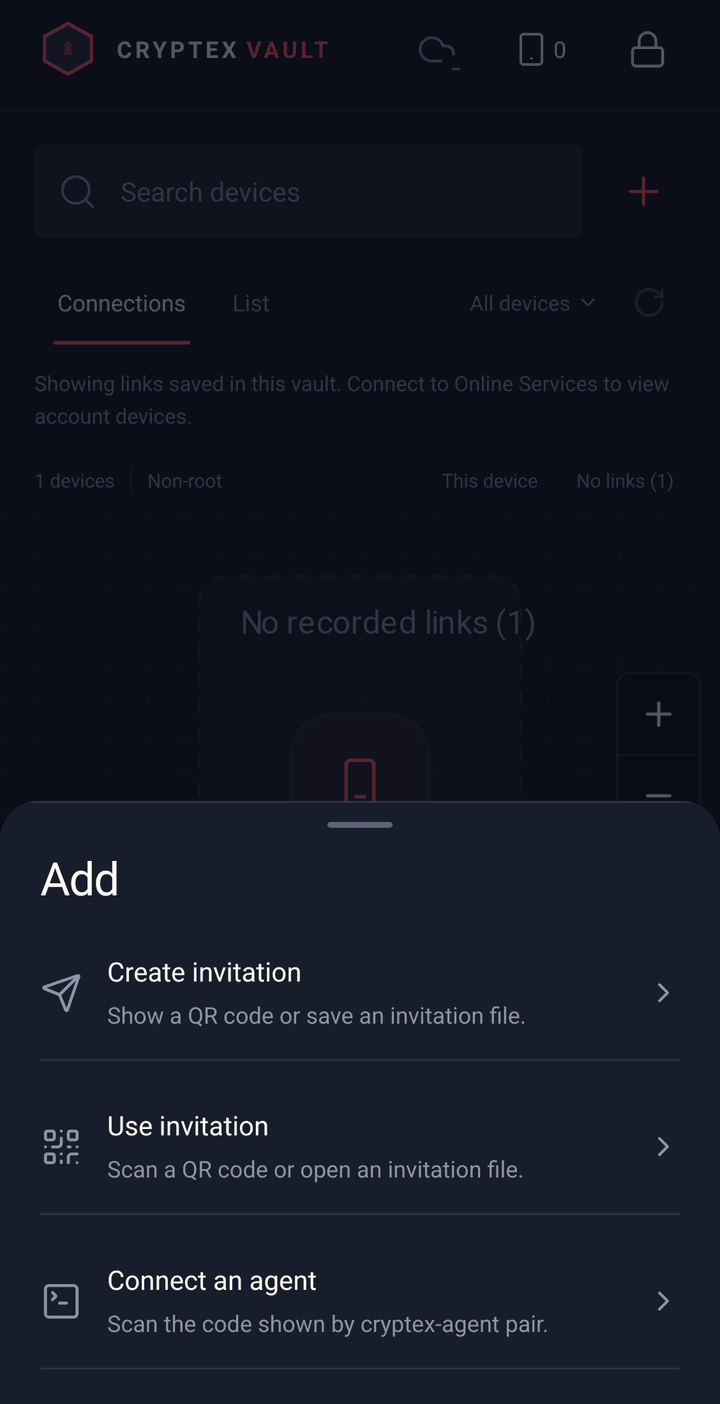
Open the Devices tab, tap + next to the search field, and choose Connect an agent.
- 02
Point the camera at the QR code. If the camera can't read it, tap Paste code and paste the text code.
- 03
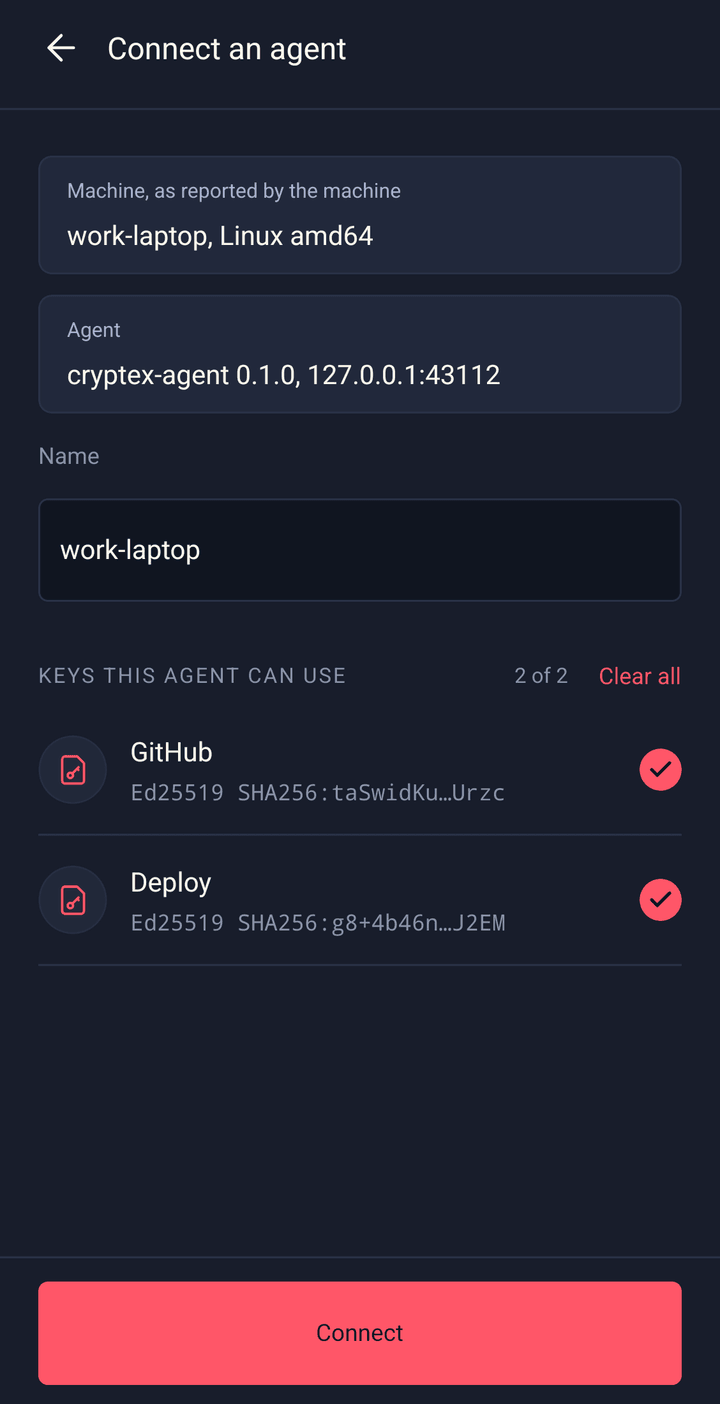
Give the agent a name and pick the keys it may use under Keys this agent can use, or none and add them later with Edit keys. With many keys, search the list or use Select all. Then tap Connect. On Android 13 and later, the phone asks whether Cryptex Vault may send notifications. Allow it, or requests that arrive while the app is closed or locked can't reach you.
- 04
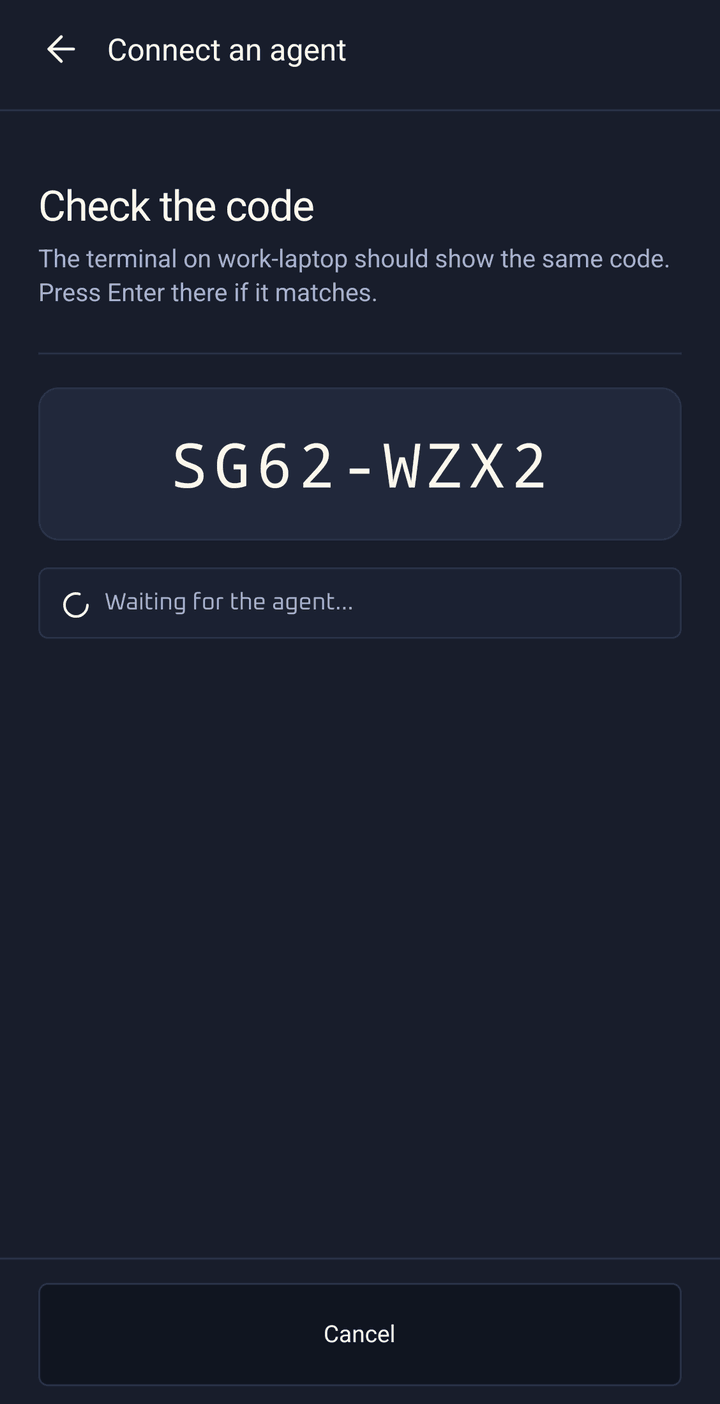
The phone shows a short code such as
CP22-34W6. Check that the terminal shows the same one, and press Enter there.
 View full size
  View full size
  View full size
 With the web app
- 01
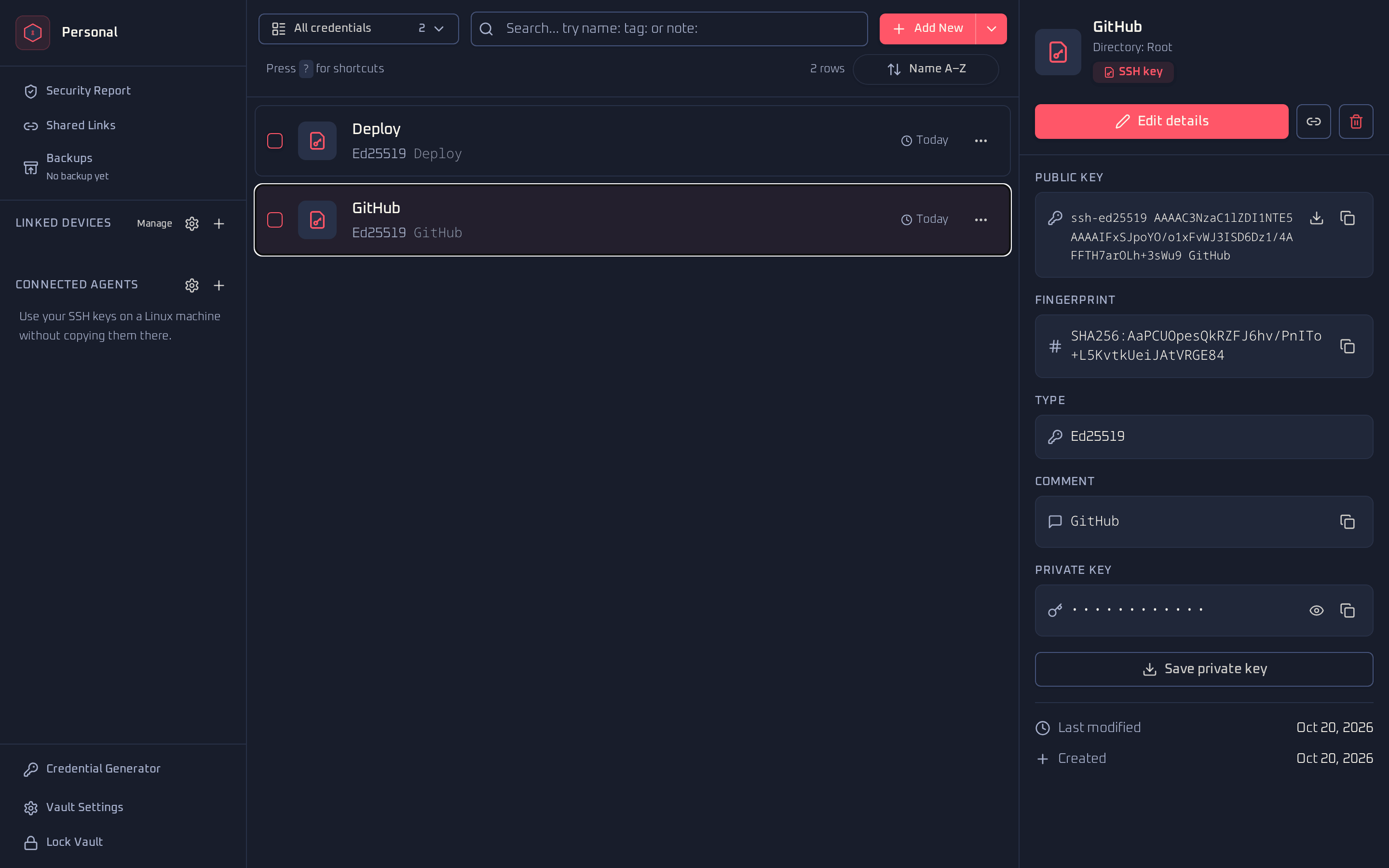
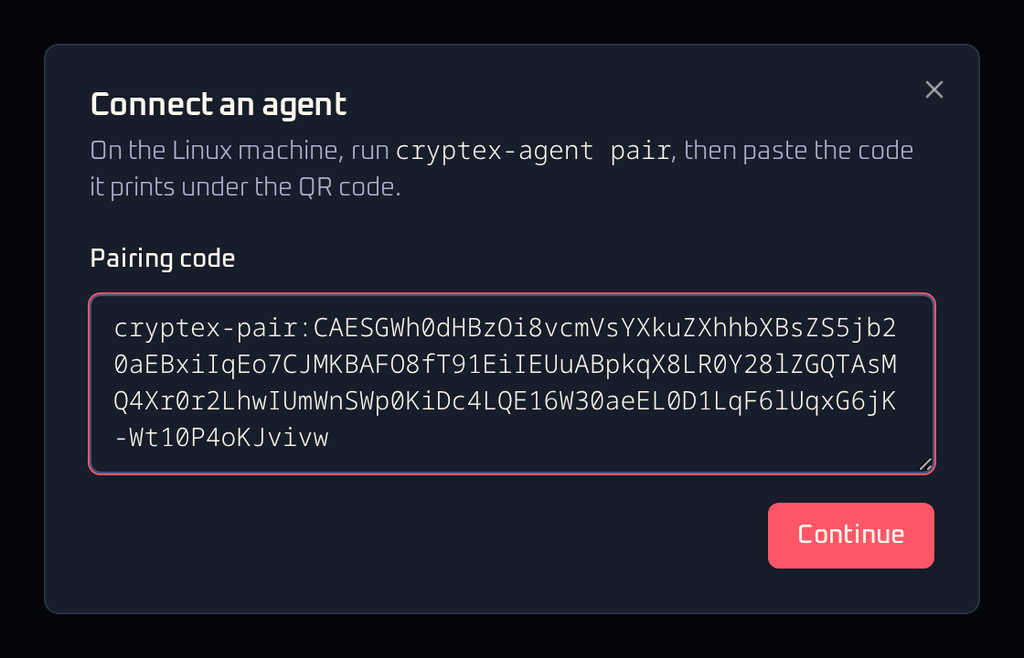
Unlock your vault. In the sidebar, under Linked Devices, find Connected Agents and choose +.
- 02
Paste the text code from the terminal and choose Continue.
- 03
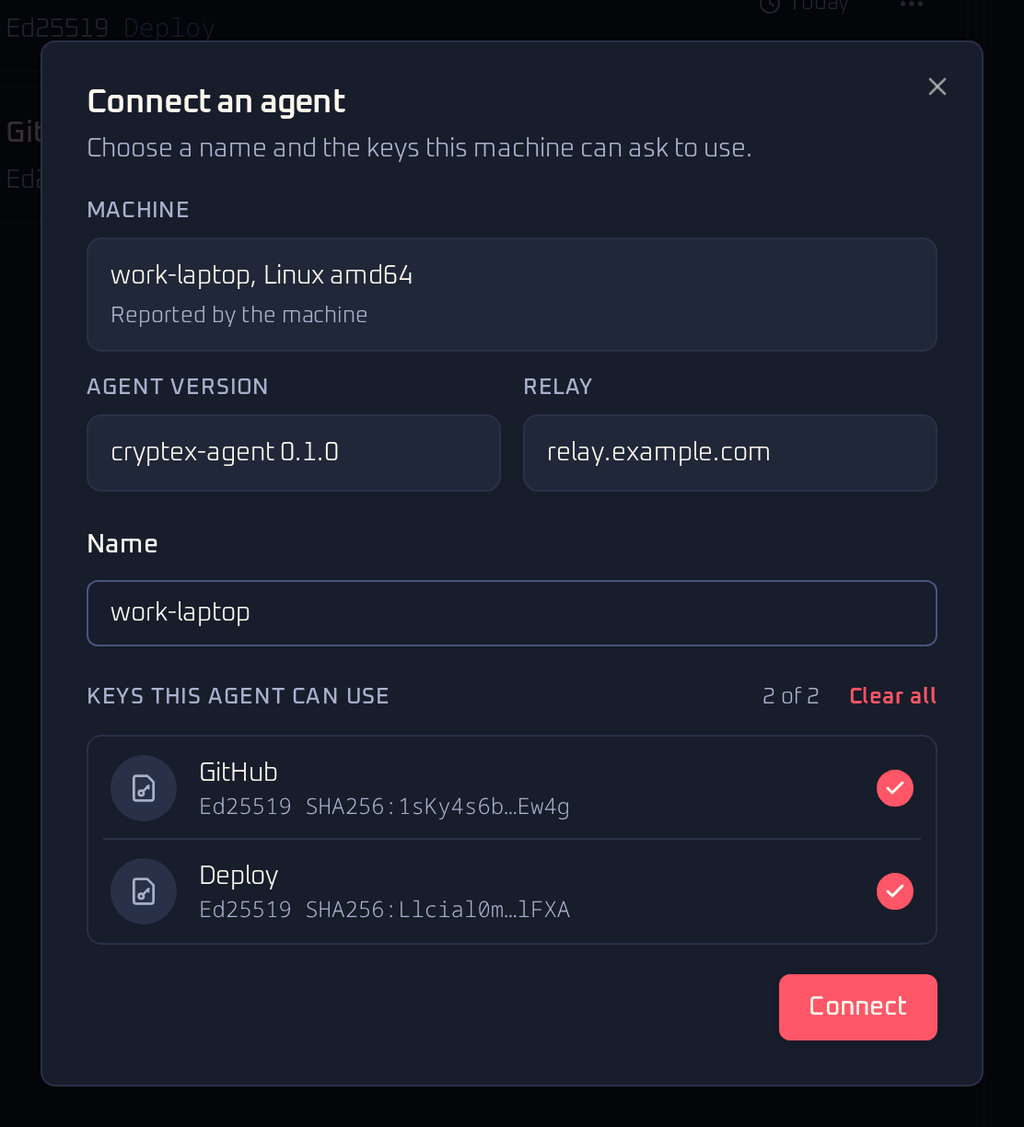
Give the agent a name, pick its keys and choose Connect. With many keys, search the list or use Select all. You can also connect with no keys and add them later with Edit keys.
- 04
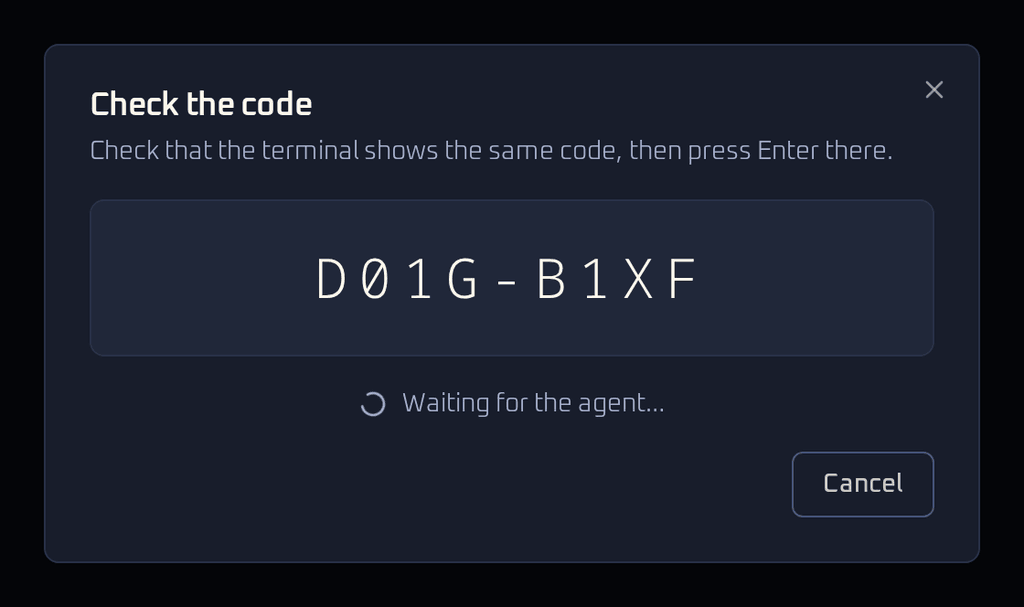
Check that the terminal shows the same code as the browser, and press Enter there.
 View full size
  View full size
  View full size
  View full size
 When you connect your first agent, the browser asks whether Cryptex Vault may show notifications. Allow it to hear about requests while the tab is in the background.
After you press Enter, your device saves the agent in your vault. From then on Cancel shows Saving… and can't be pressed until the save is done.
The device you pair with becomes the agent's approver. Only that device answers its requests. Your other linked devices see the agent and its history, and can revoke it.
The agent uses the hosted relay unless you pass --relay. For a relay you run yourself, use cryptex-agent pair --relay https://relay.example.com. The app or browser then asks for the relay's access token and saves it in your vault for that device. See the relay below.
Use it with ssh and git
Start the service and point SSH at the agent's socket:
# Start the agent now and at every login
systemctl --user enable --now cryptex-agent
# Point SSH at it; add this line to ~/.bashrc or ~/.zshrc too
export SSH_AUTH_SOCK=$XDG_RUNTIME_DIR/cryptex-agent.sock
# Lists the keys you granted, even offline
ssh-add -L
cryptex-agent statusssh-add -L should print the public keys you granted. From then on, ssh, scp, git push and anything else that uses SSH_AUTH_SOCK asks your device to approve each login. Each request waits up to 90 seconds. If it isn't answered within a few seconds and notify-send is installed, the machine shows a desktop notification as a reminder.
The agent logs each request it is waiting on, and how it ended, in journalctl --user -u cryptex-agent. To also see a line in the terminal that made the request, for example on a server without a desktop, set terminal = true in ~/.config/cryptex-agent/config.
Some desktops set SSH_AUTH_SOCK to their own agent after your shell starts. To make ssh use this agent whatever the variable says, add IdentityAgent ${XDG_RUNTIME_DIR}/cryptex-agent.sock under Host * in ~/.ssh/config.
With several keys granted, the agent offers the key that last worked with a server first, so you approve one request per login.
Sign git commits
Git can sign commits with an SSH key. Copy the public key from the SSH key item in your vault, or from ssh-add -L, and set it as the signing key:
git config --global gpg.format ssh
# Paste the public key from the SSH key item, after key::
git config --global user.signingkey "key::ssh-ed25519 AAAAC3Nza... GitHub"
git commit -S -m "Signed commit"
# Optional: sign every commit
git config --global commit.gpgsign trueEach signature asks for approval like a login does. For GitHub or GitLab to show commits as verified, add the same public key there as a signing key.
The agent can't add, remove or lock keys, because it has none. ssh-add with a key file, ssh-add -d, ssh-add -D and ssh-add -x are refused.
Approve requests
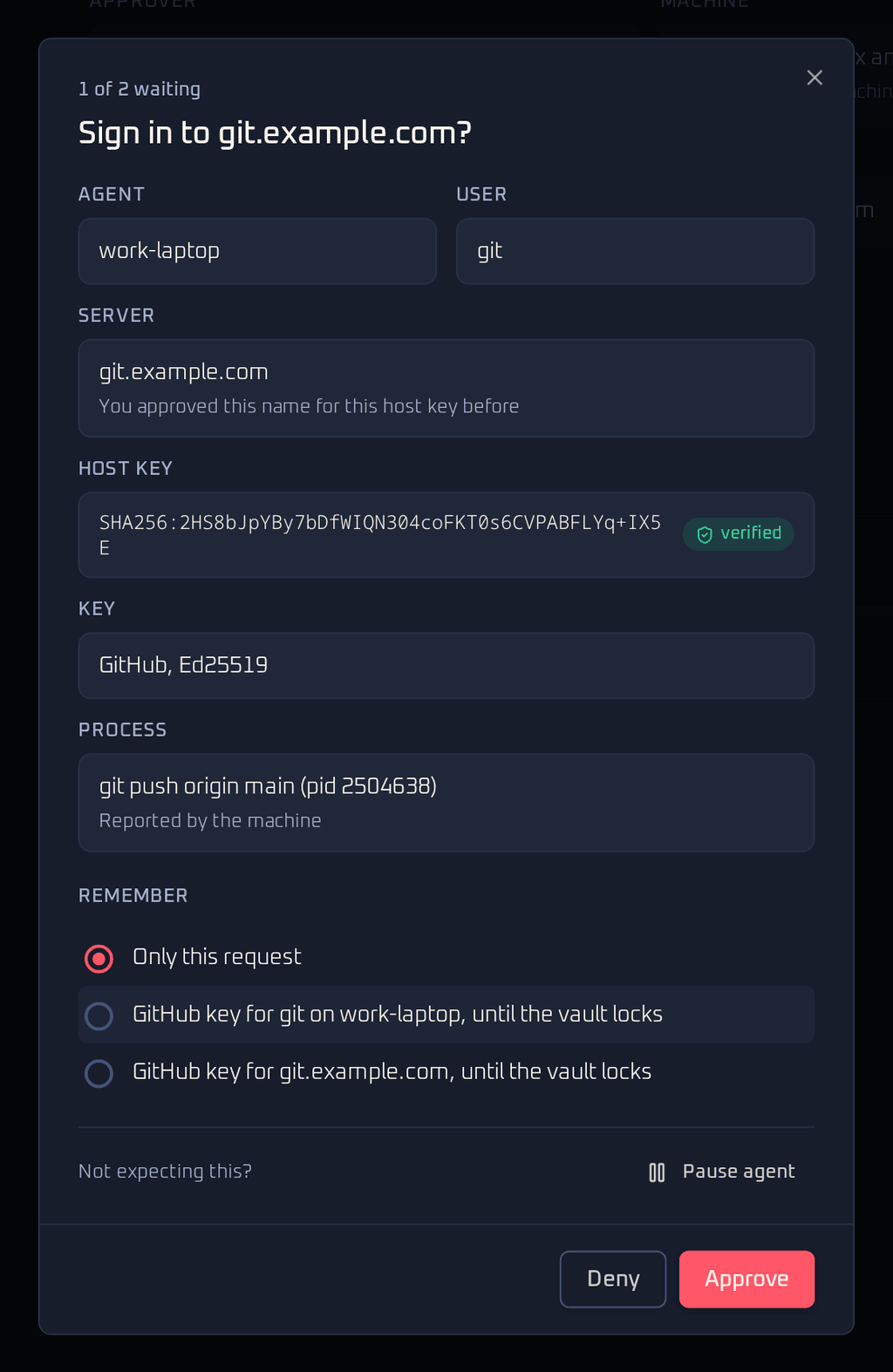
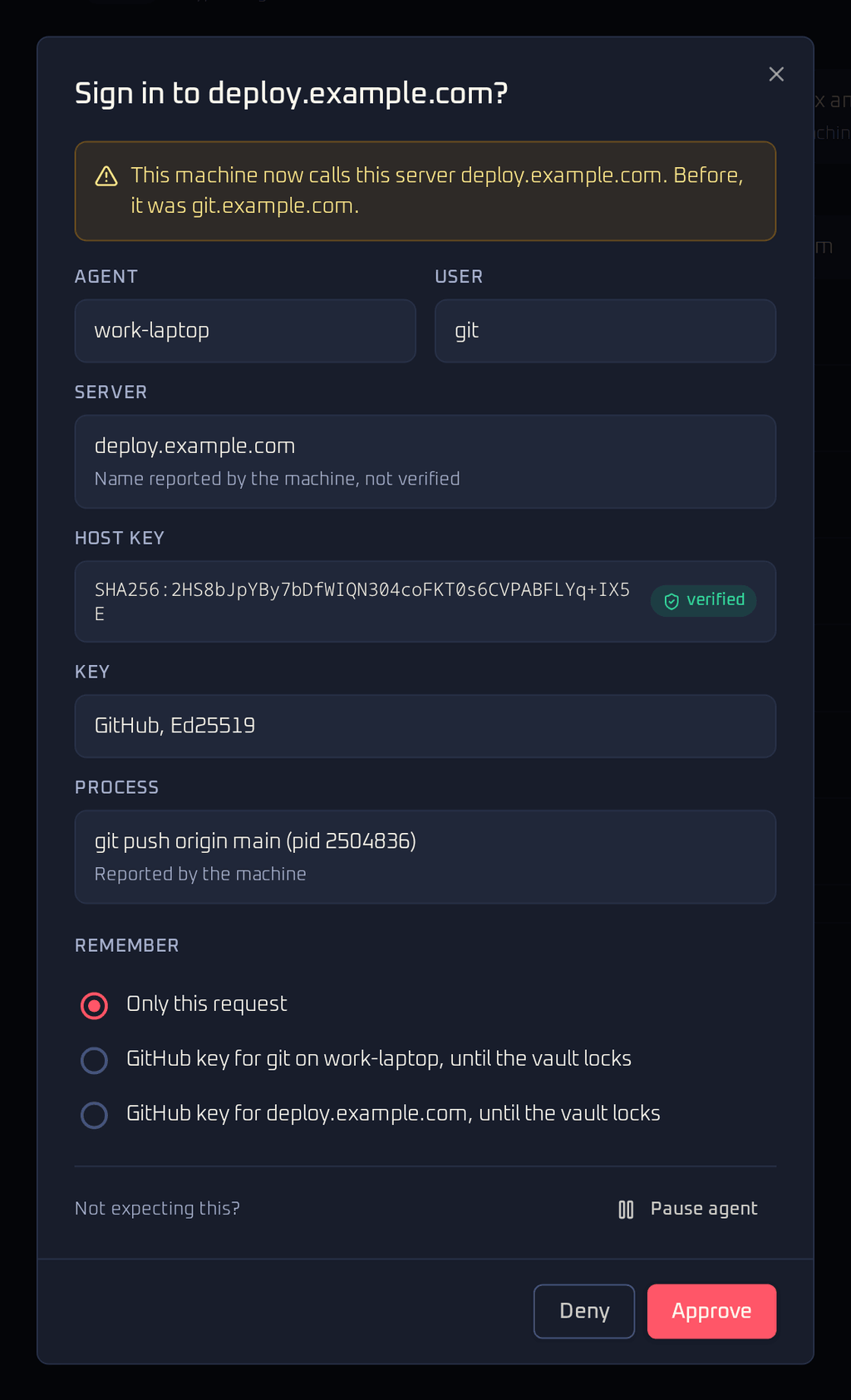
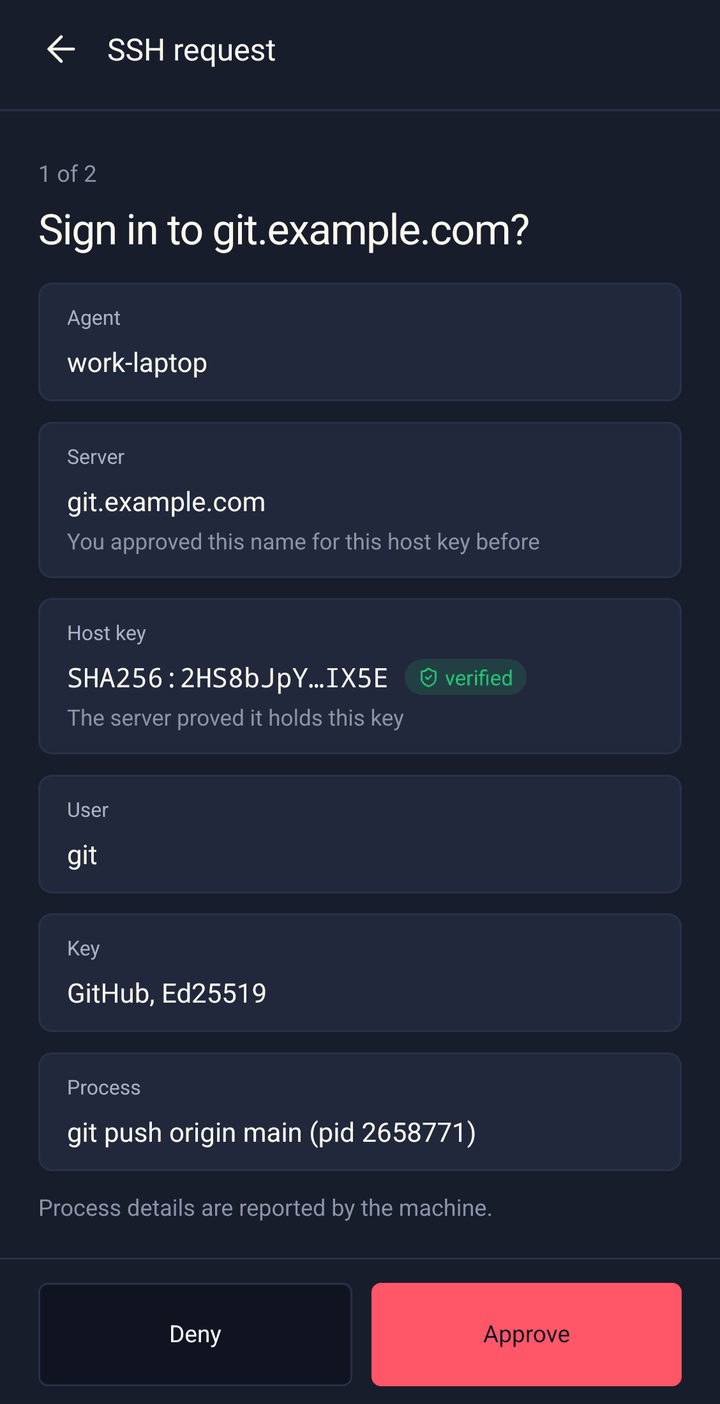
A request shows a question such as Sign in to github.com? and these details:
- Agent: the name you gave the machine.
- Server and Host key: where you are logging in.
- User: the account on the server.
- Key: the vault item that will sign.
- Process: the command that asked, such as
git push, and its process ID.
The process and the machine name come from the machine itself. Treat them as a hint, because malware on the machine could fake them.
When several requests wait, the prompt shows which one you are looking at, such as 1 of 3, and moves on to the next after each answer. Approve can't be used for about 0.7 seconds after a request appears, so a tap or key press meant for something else can't approve it. In the web app, the prompt never opens with Approve focused, so pressing Enter can't approve it either.
 View full size
 Verified servers
OpenSSH 8.9 and later tell the agent which server they are logging in to, signed by that server's host key. Your device checks that signature itself and marks the host key verified. The server name comes from the machine's known_hosts file, so it is only what the machine reports.
Each agent remembers the server name it showed for each host key when you approved a login yourself. These names sync with the agent to your other devices. When the name and host key match one you approved before, the server line says You approved this name for this host key before. Otherwise it says Name reported by the machine, not verified. The prompt warns when a known host key comes with a new name, or a known name with a new host key. Approve those only if you expected the change, for example after the server was reinstalled.
 View full size
 Destination unknown
Some clients don't say which server they log in to: OpenSSH before 8.9, Paramiko and therefore Ansible, libssh2, and programs written in Go. Their requests show SSH login, destination unknown. Deny is the default button, the other choice is Approve once, and these requests are never remembered. Approve one only if you started that login yourself a moment ago.
Agent forwarding
Forwarding works: after ssh -A to a jump host, logins from there to other servers still ask your device. A forwarded request carries a warning and a Via line naming the jump host. It means a server you are logged in to is asking to use your key, so approve it only if you expect it. Forwarded requests are never remembered.
Signatures
Commit signing shows Sign a git commit? with the namespace git and the folder the command ran in. Your device sees only a hash of the commit, not its contents, and can't check which repository it belongs to. Other ssh-keygen -Y sign requests show a title such as Sign a file?.
Remember an approval
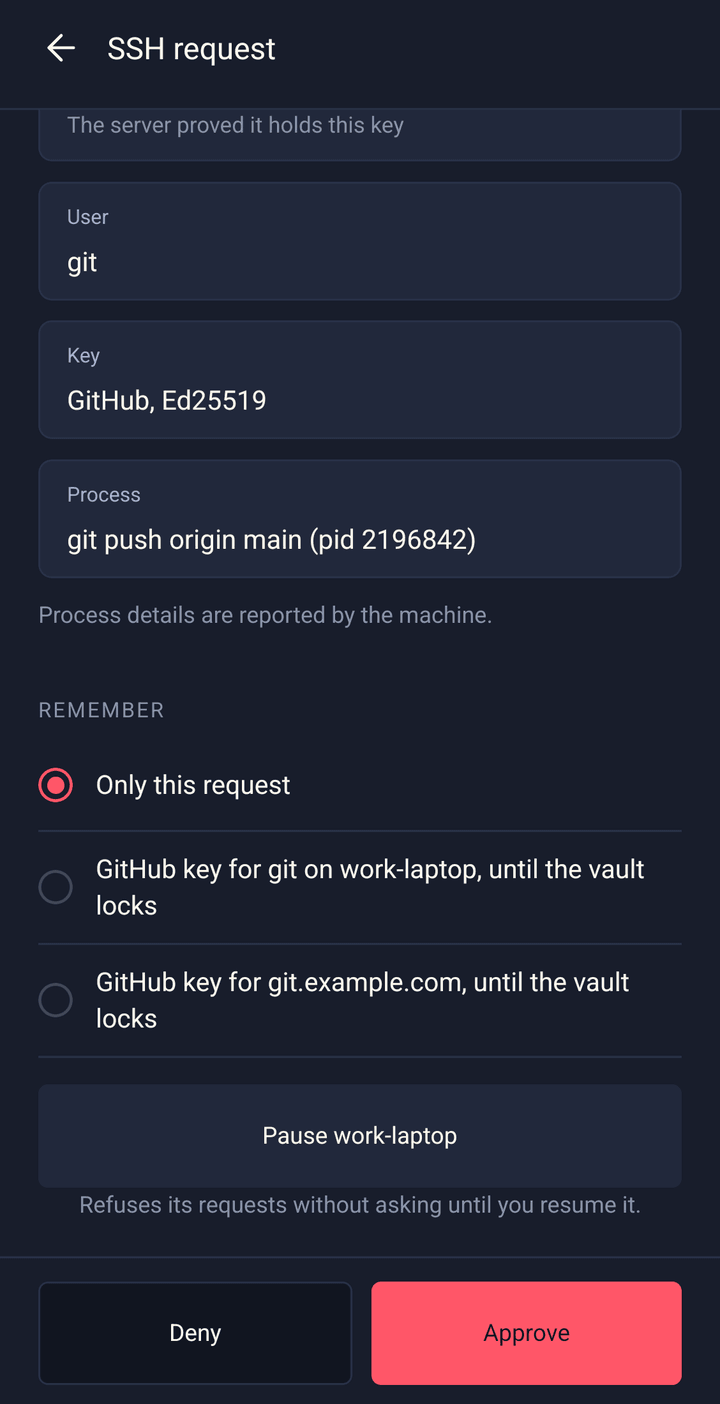
For verified logins and git signatures, the Remember section lets you skip the next prompts until the vault locks:
- Only this request, the default.
- This key for one program on this agent, such as
sshon your workstation. - This key for this server.
- For git signatures, this key for the running git process, so a rebase that signs many commits asks once.
Remembered approvals live only in the approving device's memory. They have no time limit and end when its vault locks. The history marks them Approved automatically. Forwarded requests, unknown destinations and signatures other than git commits always ask.
Locking the vault stops signing at once, even while the vault is still being saved.
Pause an agent
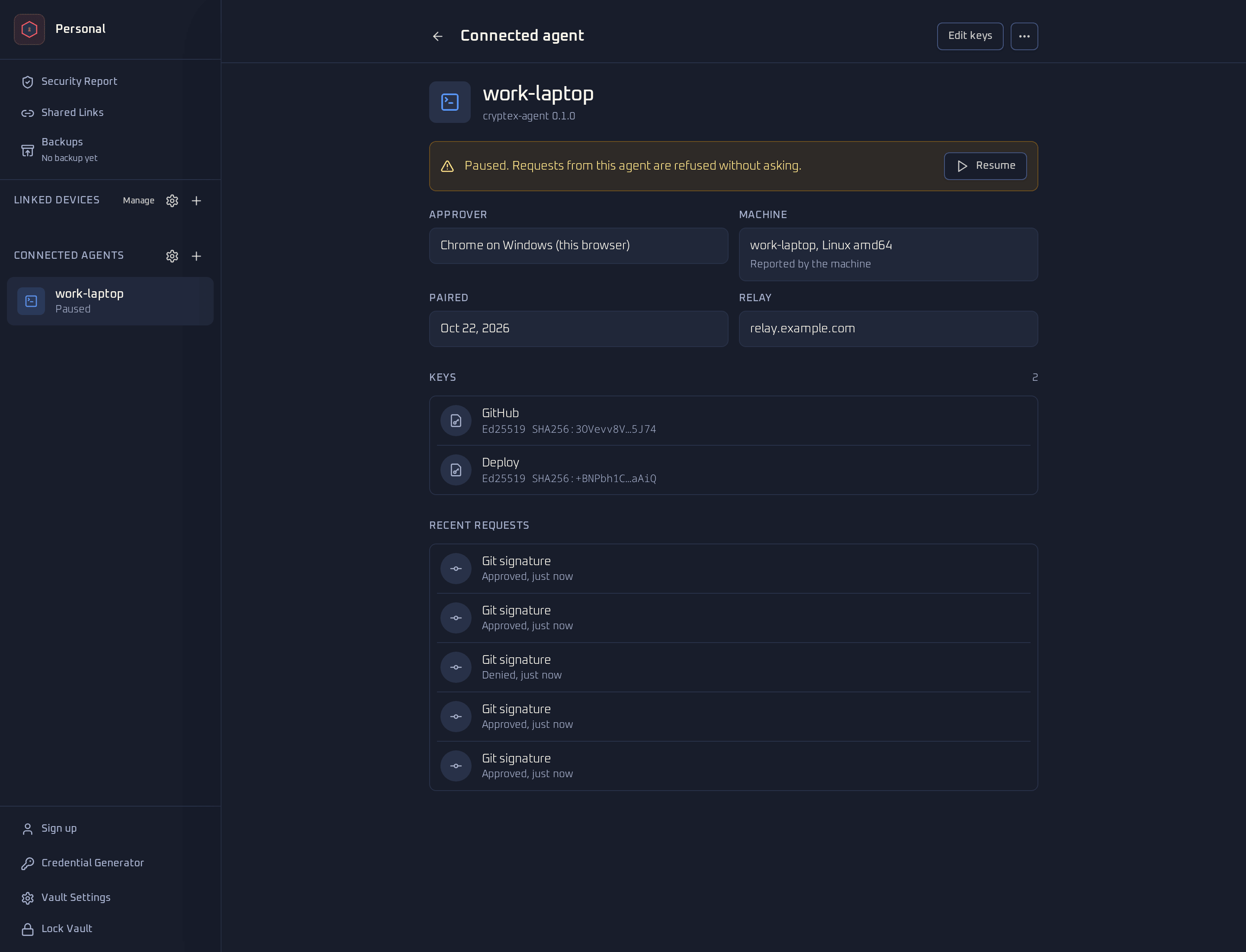
If you didn't expect a request, choose Pause agent at the bottom of the prompt. On Android the button names the agent, such as Pause work-laptop. That refuses the request in front of you too. While an agent is paused, its requests are refused without a prompt and its remembered approvals don't apply. The pause works at once on the device you used and syncs to your other devices with the vault.
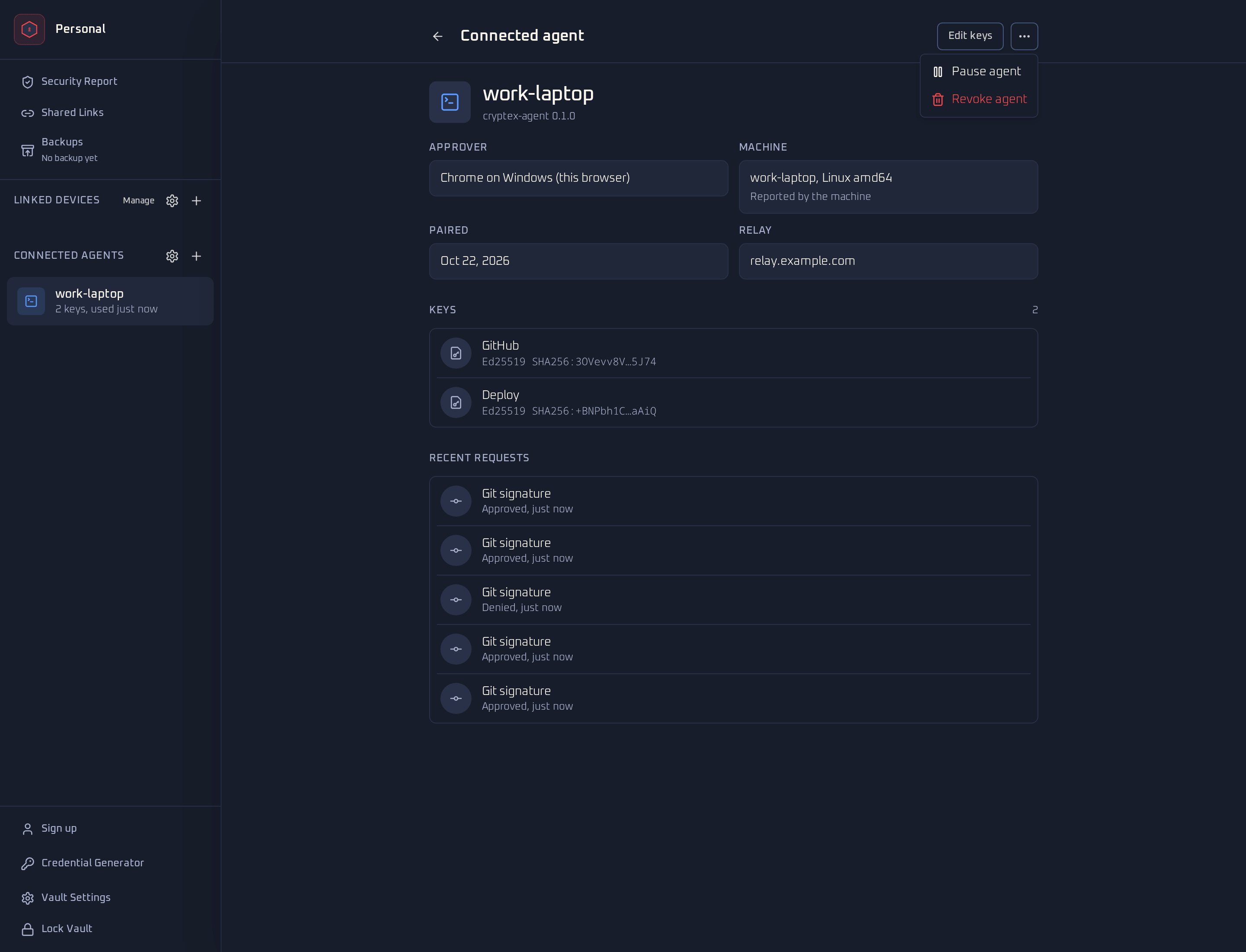
You can also pause from the agent's page: open the menu at the top, next to Edit keys, and choose Pause agent. The page then shows Paused with a Resume button. After you resume, requests ask again.
 View full size
 On Android
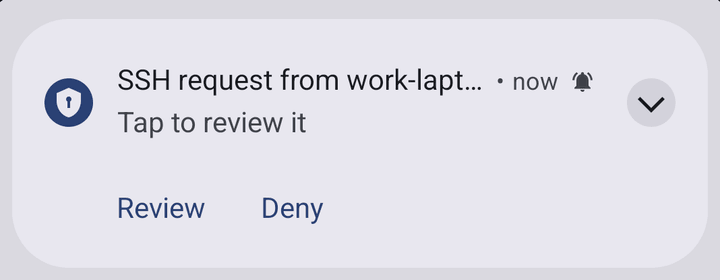
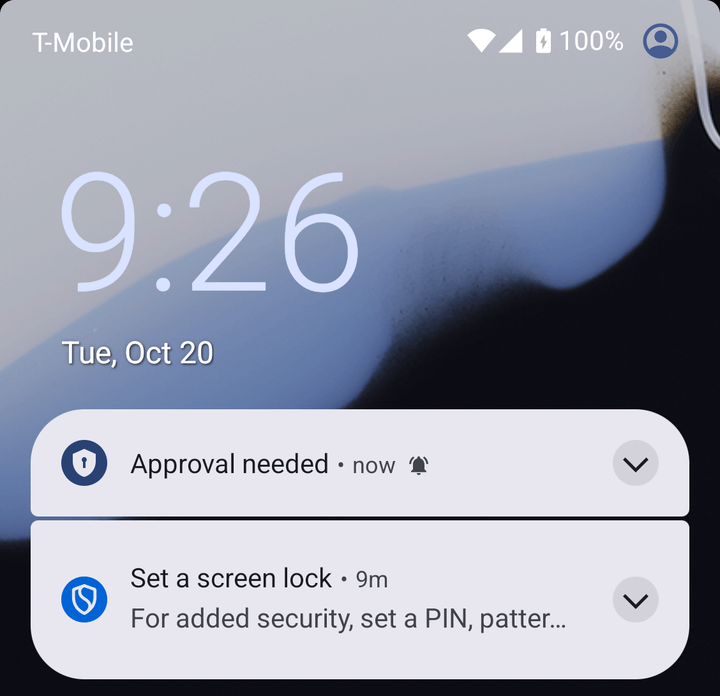
While your phone approves at least one agent, Android shows a permanent Ready for SSH requests notification. That keeps the app connected in the background, also after a restart. A request shows as SSH request from followed by the agent name, with Review and Deny. While the phone is locked or its screen is off, the notification says only Approval needed, also in the notification shade. The agent name comes back when you unlock the phone. Deny works without unlocking. Review asks you to unlock the vault and then opens the request. If the app is open and unlocked, the request opens straight away.
While notifications are off for Cryptex Vault, the Devices tab and the agent's page show a notice with Open notification settings.
 View full size
  View full size
  View full size
  View full size
 In the web app
The browser approves only while your vault is unlocked and a vault tab is open. Requests appear as a dialog over the vault. Closing the dialog denies the request. When the tab is in the background, its title shows how many requests are waiting, and a browser notification appears if you allowed them.
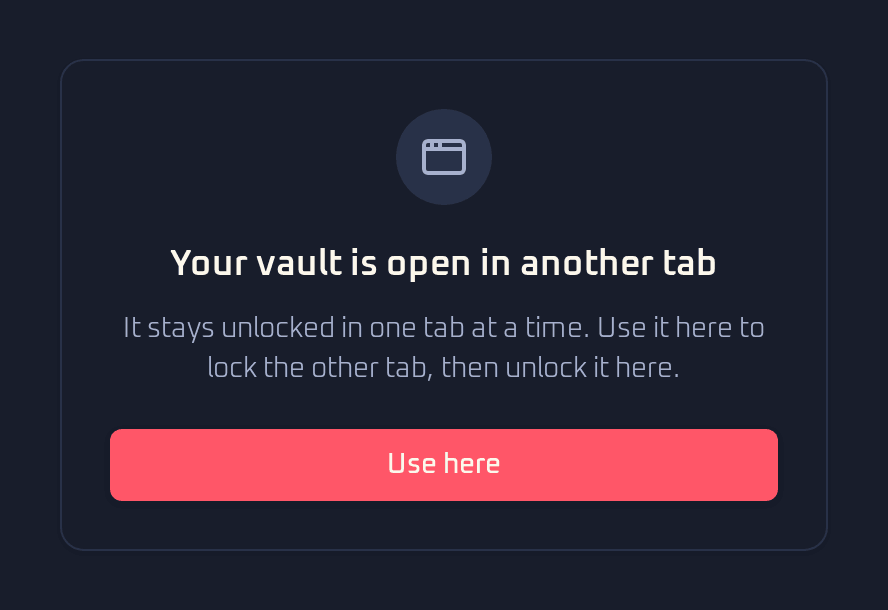
Your vault can be open in only one tab at a time. Another tab shows Your vault is open in another tab with a Use here button. It locks the vault in the first tab, which saves first, and you then unlock it in the new tab. Leaving the vault for another page of the site also locks it, after saving.
 View full size
 Manage and revoke agents
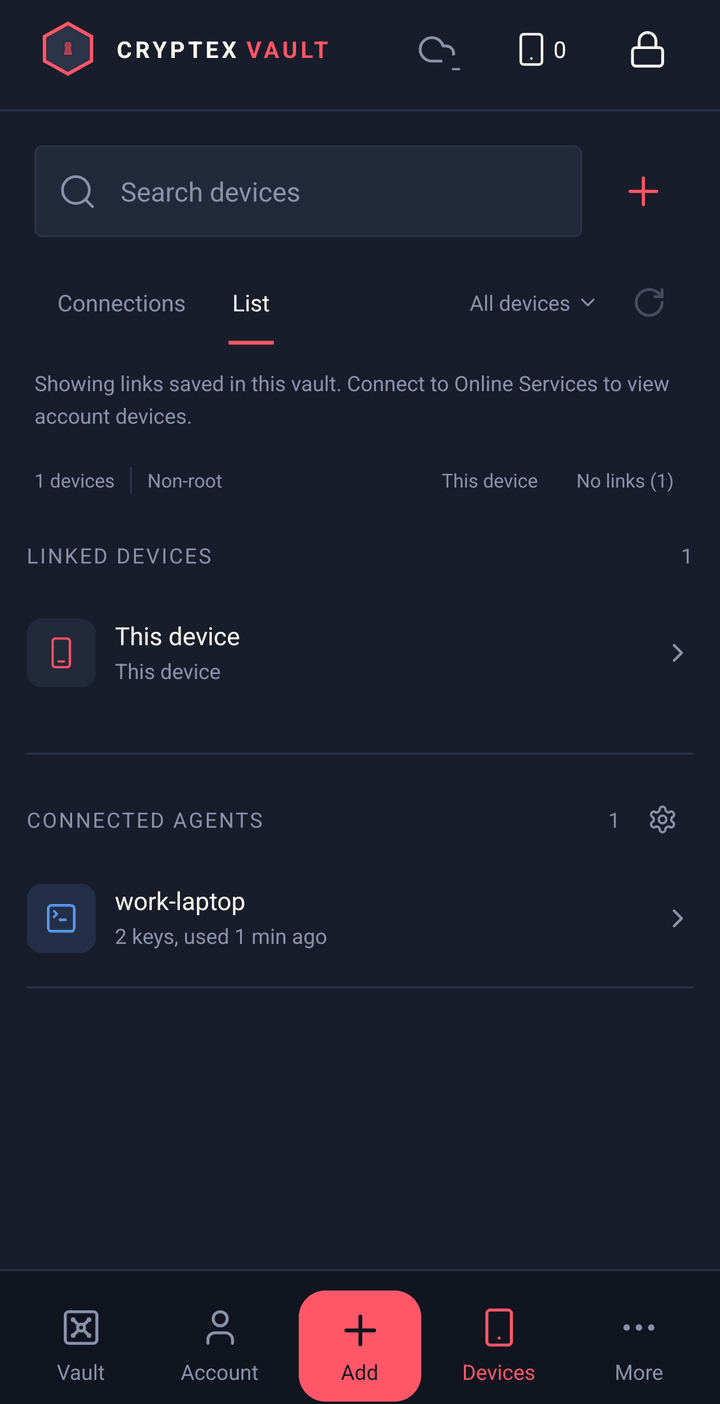
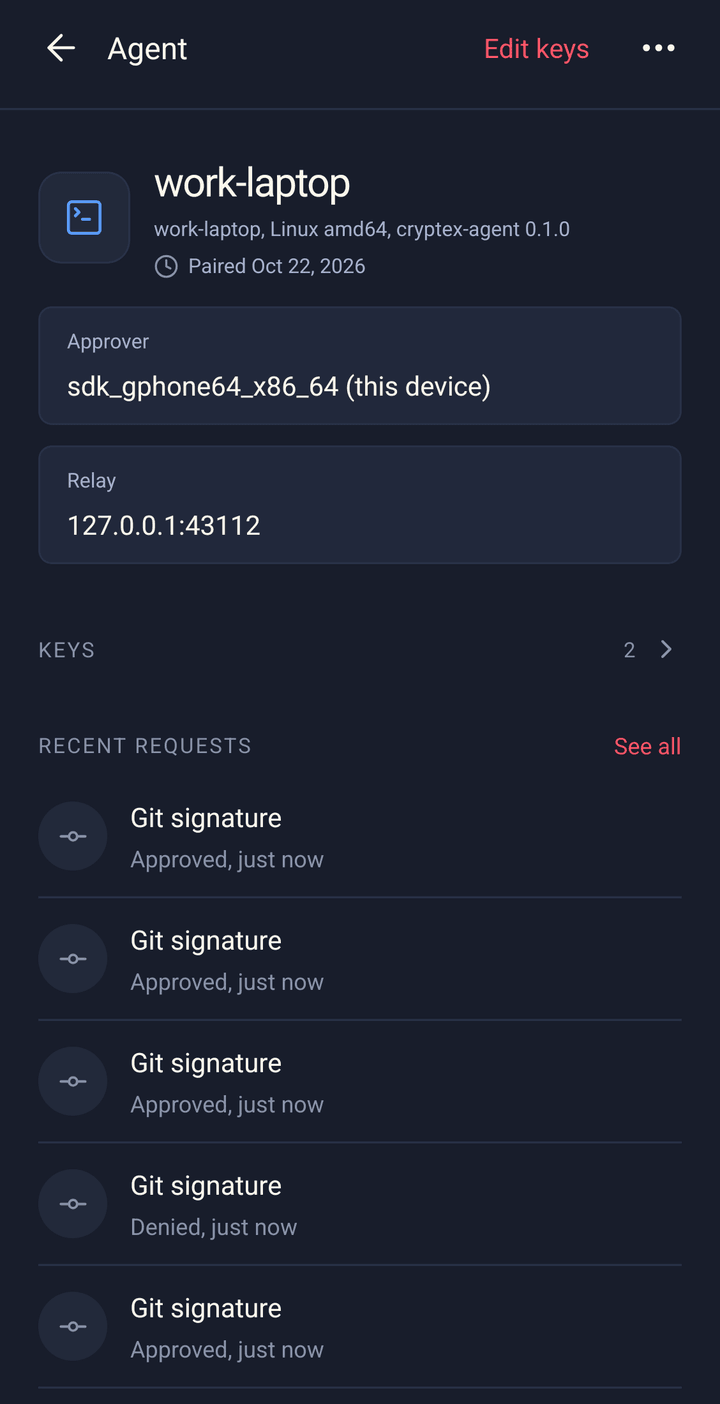
On Android, agents are listed under Connected agents in the List view of the Devices tab. In the web app, they are under Connected Agents in the sidebar. Open one to see its approver, machine, relay, keys and Recent requests. The history keeps up to 200 requests from the last 90 days, and it syncs to your linked devices with the rest of the vault.
 View full size
  View full size
  View full size
 To change which keys an agent may use, open it on the approving device and choose Edit keys. The agent gets the new list the next time it connects. If it can't save the list to disk, it signs nothing, reconnects and tries again.
Revoke an agent
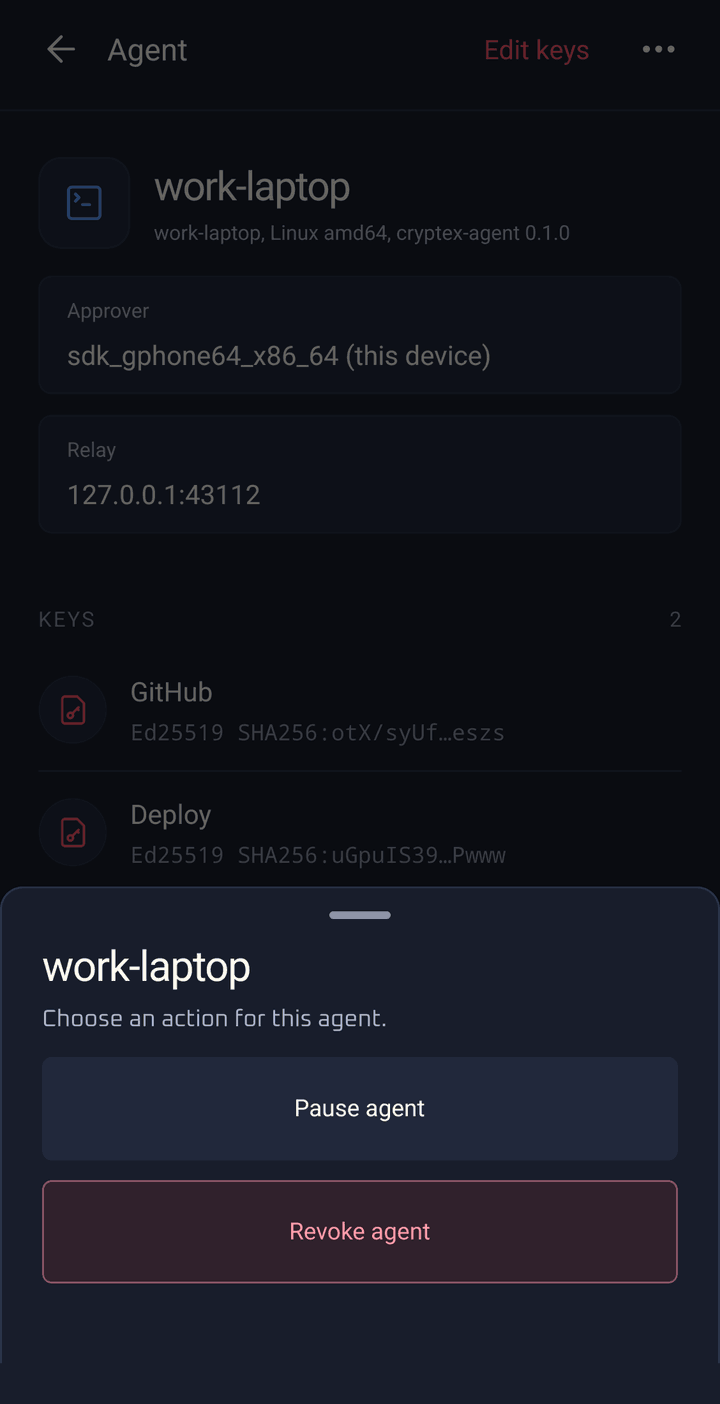
Open the agent, open the menu at the top and choose Revoke agent, in the web app or on Android. Any of your linked devices can do this. On the machine itself, run:
 View full size
 cryptex-agent unpairA revoked agent lists no keys and signs nothing until you pair it again. If the agent uses a relay you run yourself, revoke it from the approving device or with cryptex-agent unpair.
To pair a machine with a different device, run cryptex-agent pair --force. It replaces the existing pairing.
The relay
The agent and your device never connect directly. Both keep a connection open to a relay, which passes the encrypted requests and answers between them. The relay can't read them or sign anything. It sees which agent talks to which device, when, and how much.
- Hosted relay.
relay.cryptex-vault.comcomes with Online Services. The approving device must be signed in to Online Services.cryptex-agent pairuses it by default. - Your own relay. The relay is open source. Run it with an access token and pair with
--relay. The self-hosting guide adds it to the self-hosted stack.
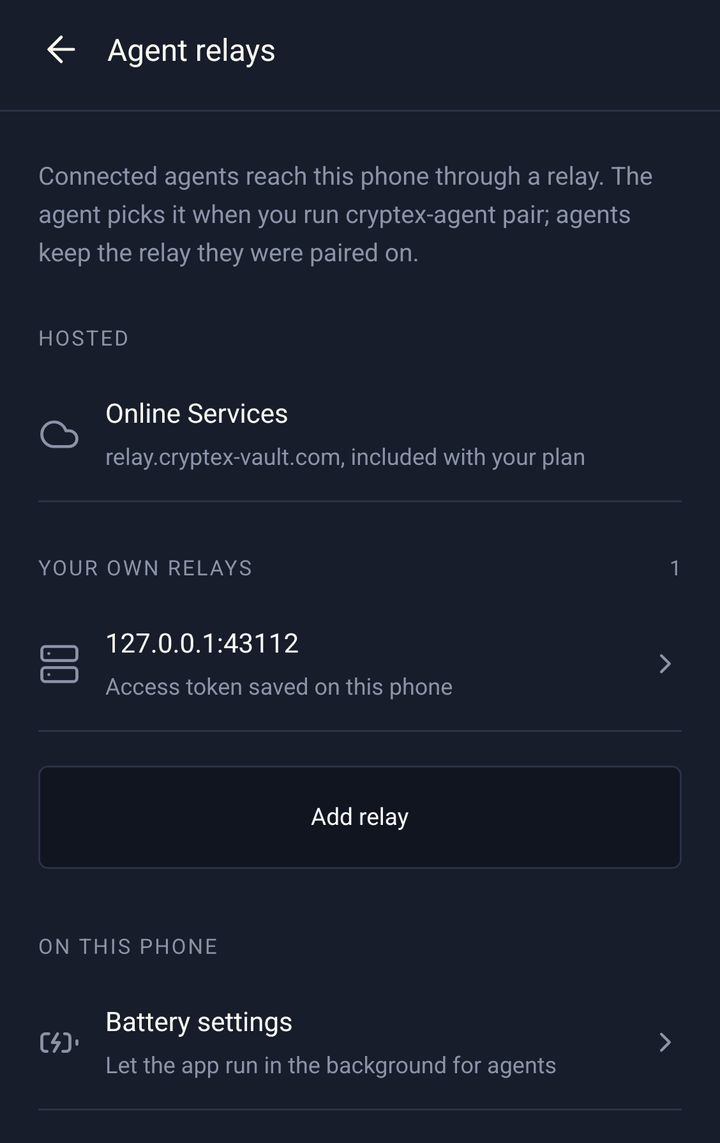
Each agent keeps the relay it was paired on. To see or change the access tokens a device has saved, open Agent relays. In the web app, that is the gear next to Connected Agents. On Android, it is the gear next to Connected agents in the List view of the Devices tab. Before you connect an agent, tap + on the Devices tab, choose Create invitation, then Advanced connection and Manage custom servers. The SSH agents section of that screen has Agent relays.
 View full size
 A relay address must start with https://. Plain http:// works only for a relay on the same machine (localhost, 127.0.0.1 or [::1]), for testing. The agent, the Android app and the web app all refuse other http:// addresses. The agent also doesn't follow redirects, so a relay can't send it to another server.
Pass the relay's address exactly as the relay knows it (its RELAY_PUBLIC_URL). Sign-ins are checked against that address, so localhost fails on a relay set up as 127.0.0.1, even on the same machine. The app then reports the pairing code as expired.
To use a relay other than the hosted one by default, set relay = https://relay.example.com in ~/.config/cryptex-agent/config.
Troubleshooting
No request arrives
- Run
cryptex-agent status. It shows the pairing, the granted keys and whether the service is running.journalctl --user -u cryptex-agentshows relay connection errors. - On Android, check that notifications are allowed for Cryptex Vault in the system settings, and that the Ready for SSH requests notification is there. If requests arrive late or not at all while the phone is idle, open Battery settings on the Agent relays screen and let Cryptex Vault run in the background.
- In the web app, unlock the vault and keep a vault tab open. If Chrome discarded the tab, switch to it once.
- Requests go to the device that approves the agent. The agent's page shows which one under Approver.
The pairing code doesn't work
Codes expire after three minutes and work once. Press Enter in the terminal for a new code, or run cryptex-agent pair again. If the device says the code is for your own relay, enter that relay's access token.
ssh-add -L lists nothing
- The agent has no identities means the agent isn't paired, was revoked, or has no keys granted.
cryptex-agent statussays which. Pair again, or use Edit keys on the approving device. - Could not open a connection or Error connecting to agent means
SSH_AUTH_SOCKisn't set in this shell, or the service isn't running. Runsystemctl --user enable --now cryptex-agentand export the variable again. - If it lists other keys,
SSH_AUTH_SOCKpoints at another agent.
agent refused operation
ssh prints this when the agent didn't get a signature. Usually the request was denied, or nobody answered within 90 seconds. It also happens when the key isn't granted to this agent anymore, the agent was revoked, or the device can't sign with that key type. The agent logs the reason: journalctl --user -u cryptex-agent shows a Signature not given line with it.