
Before you start
Open and unlock the vault you want to synchronize. On the other device, open the web app or install the Chromium Extension. Both devices need to be online. Keep both apps open until linking finishes.
To link devices and synchronize your vault, you need either a paid Online Services subscription or your own connection servers. To use your own servers without a subscription, follow the self-hosting guide and configure them under Vault signaling before linking.
Create an invitation
- 01
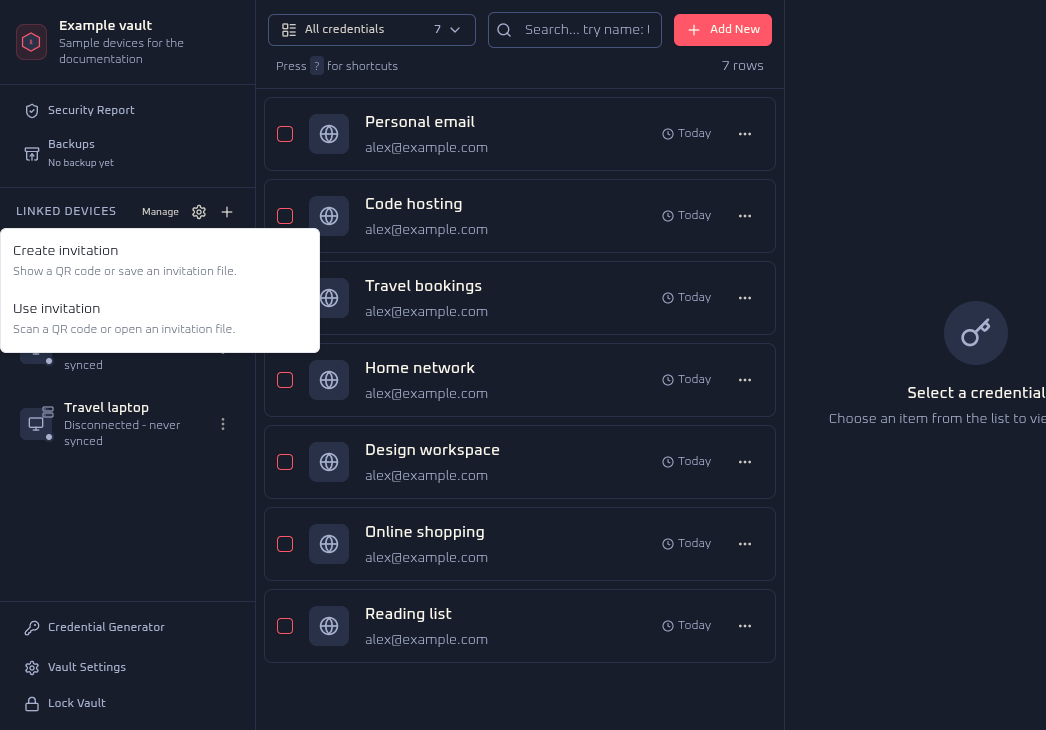
In your existing web vault, open the plus menu beside Linked Devices.
- 02
Choose Create invitation and follow the prompts.
- 03
Display the QR code for the other device to scan, or save an invitation file to open there. Keep the verification words and invitation screen available.
 View full size
 Accept the invitation on the other device
View full size - 01
Open the web app on the receiving device and unlock the vault you want to receive into. If this browser has no vault yet, create a vault first.
- 02
Open the plus menu beside Linked Devices and choose Use invitation. You can also choose Manage, then Link and Receive invitation.
- 03
Choose Scan QR or Import file to load the invitation from the sending device, then choose Next.
- 04
Enter the verification words shown by the sending vault in the mnemonic field, then choose Receive vault data.
- 05
Keep both vaults and the receiving dialog open until linking completes. Close the dialog and check that the received credentials are present. Continue using your receiving vault's existing password to unlock it.
Your existing items stay in the receiving vault. Linking adds missing data from the sending vault.
Share invitations and verification words only with the device you intend to link. Delete any copied invitation file once you finish.
Sync your changes
New links connect automatically and sync after connecting. Open and unlock both vaults so they can exchange changes. The web app can sync in a background tab. If you use the extension, keep its popup open while syncing.
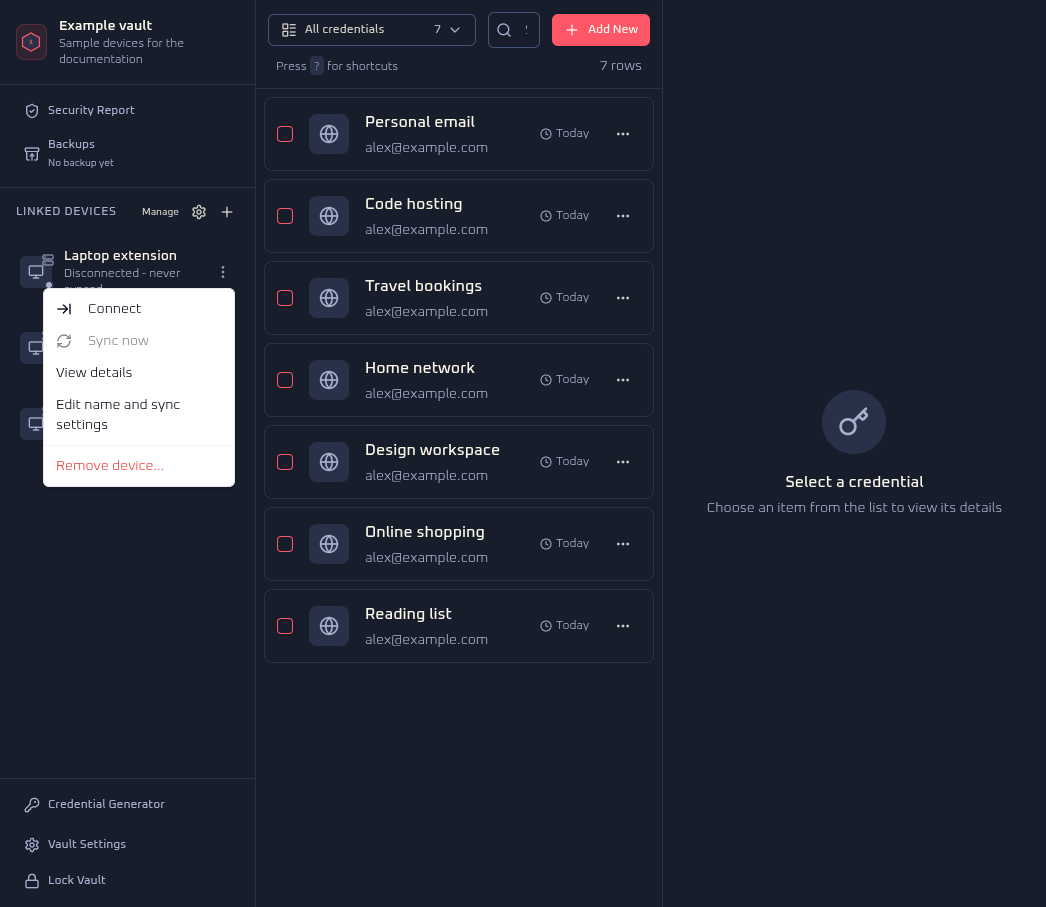
In the web vault, choose Manage beside Linked Devices and select the other device. Check that Last successful sync updates. If automatic connection is off, use Connect. Once connected, Sync now lets you start a sync manually.
 View full size
 Open the device's three-dot menu in the Linked Devices sidebar, or press and hold its row on a touch screen. Choose Edit name and sync settings to change Connect automatically, Sync after connecting, or Disconnect after inactivity.
Manage devices and links
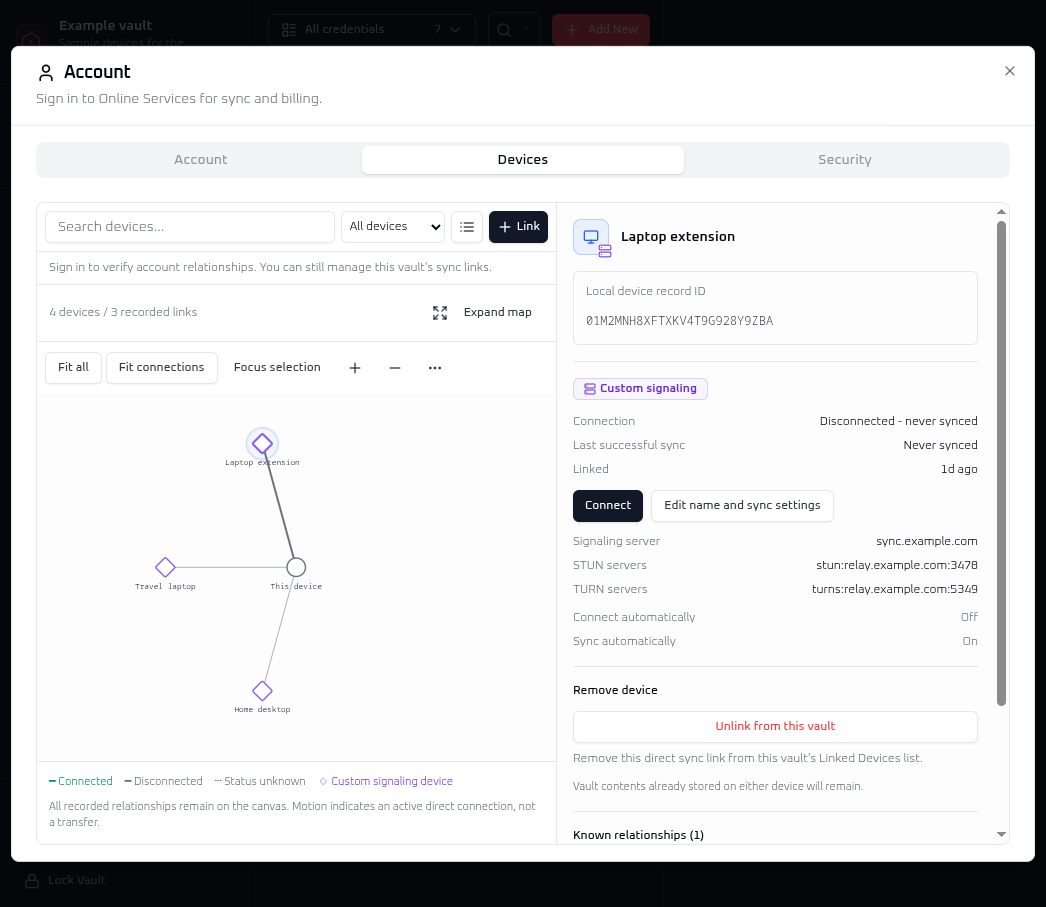
Choose Manage beside Linked Devices, or open the Devices tab in Account. Selecting a device in the sidebar, or choosing View details in its menu, opens the same screen with that device selected. On touch screens, hold a device row to open its quick actions; the three-dot button also opens the menu.
Switch between the connection map and device list. Select a device to inspect its saved links, connection status, and last successful sync. Select a line on the map to inspect a relationship. Custom signaling devices have a diamond marker. An animated line means a connection is active; it does not prove that a transfer is in progress or that a sync completed. Connections between other devices may show an unknown status.
Local links remain visible without an Online Services session or root access. Account-wide information and permissions require the appropriate account access. Use the refresh button when signed in to reload account information; it has a ten-second cooldown. A failed or unavailable account check does not establish that a saved relationship was deleted.
 View full size
 If a relationship is confirmed missing from Online Services, or an unlink attempt fails, device details can offer removal of the saved link from this vault only. That cleanup does not revoke the remote account registration.
If you get stuck
The message Vault transfer could not be authenticated. Update the sending device and try again. means the receiver could not verify the sender. Update the sending app and retry with a new invitation. Current receivers reject transfers from older senders that do not sign the transfer. If it still fails with both apps updated, stop and seek help rather than bypassing the check.
If the connection does not complete, check that both devices are online and both vaults are still open. Check the verification words and your Online Services access or custom server settings, then try again.
For connection problems, see Troubleshooting. For an explanation of how changes move between linked devices, read the technical synchronization guide.