
What an SSH key item holds
An SSH key item stores a private key, its public key and a comment, alongside the usual name, folder, notes and tags. The private key is encrypted with the rest of your vault and synchronizes to your linked devices like any other item.
You can create and use SSH key items in the web app, the Chromium Extension and the Android app. New keys are always Ed25519. Imported keys can be Ed25519, ECDSA (P-256, P-384 or P-521) or RSA.
Generate a key
- 01
In the web app, choose the arrow next to Add New; in the extension, the arrow next to the add button. Then choose SSH key. On Android, tap the add button and choose SSH key.
- 02
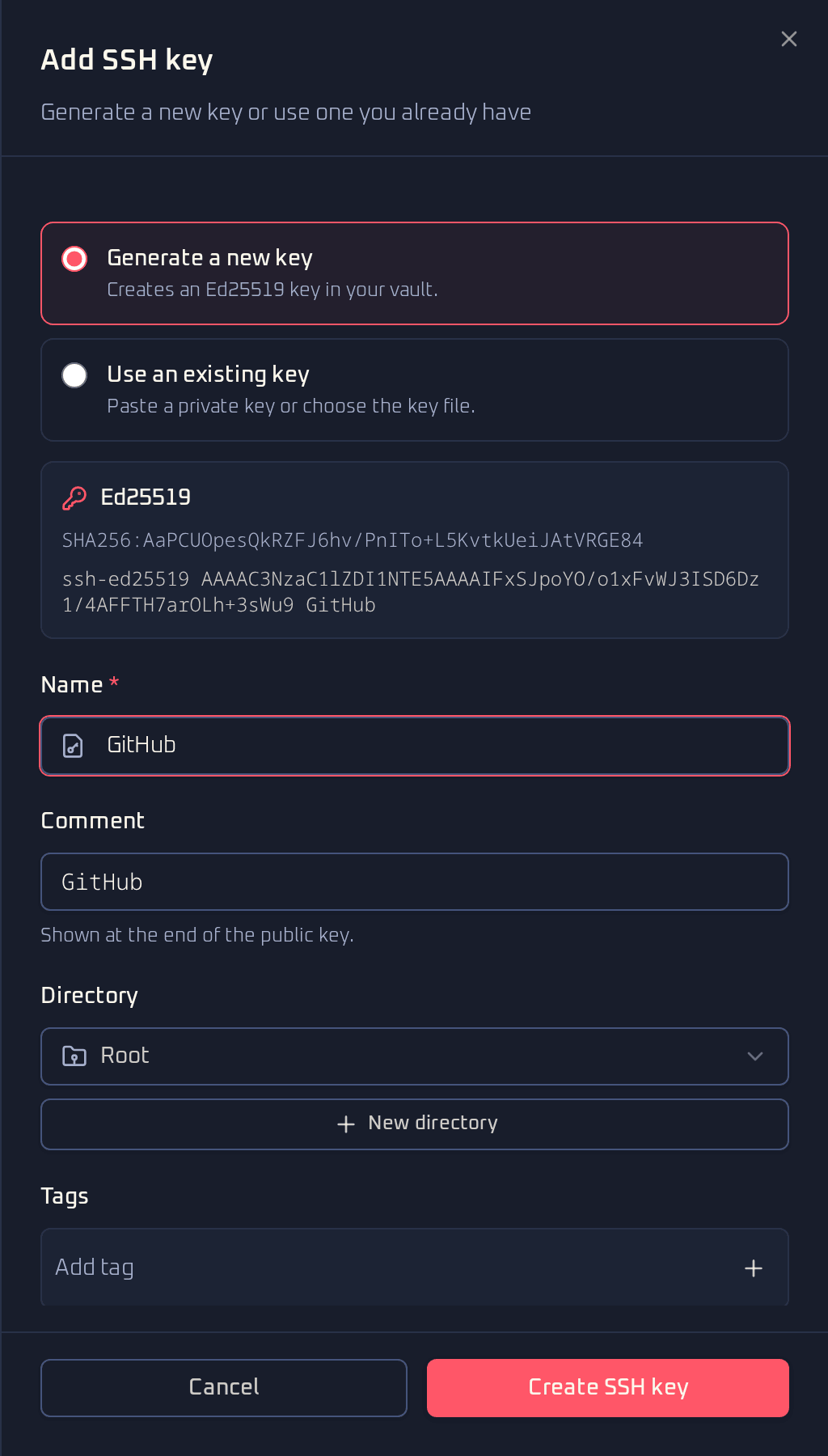
Keep Generate a new key selected. The public key and fingerprint appear straight away.
- 03
Give the key a name. The comment follows the name unless you change it.
- 04
Save the item.
 View full size
 To use the key, copy its public key from the item and add it to the server's ~/.ssh/authorized_keys file, or to the SSH keys settings of a service such as GitHub or GitLab.
Import a key
- 01
Start a new SSH key item and choose Use an existing key.
- 02
Paste the private key, or choose Choose file and pick the key file, for example
id_ed25519. - 03
Optionally, choose Add .pub file and pick the public key file, for example
id_ed25519.pub. It is checked against the private key, and its comment is used if the private key has none. In the extension popup, both buttons first open the vault in a tab, because the popup can close while a file picker is open; choose the files again there. - 04
If the key is protected with a passphrase, enter it and choose Unlock.
- 05
Check the name and save the item.
The passphrase is only used to read the key and is not stored. From then on the key is protected by your vault encryption.
The importer reads these formats:
- OpenSSH private keys (
BEGIN OPENSSH PRIVATE KEY), with or without a passphrase - PEM keys (
BEGIN RSA PRIVATE KEY,BEGIN EC PRIVATE KEY), with or without a passphrase - PKCS#8 keys (
BEGIN PRIVATE KEYandBEGIN ENCRYPTED PRIVATE KEY)
Use a key on a computer
 View full size
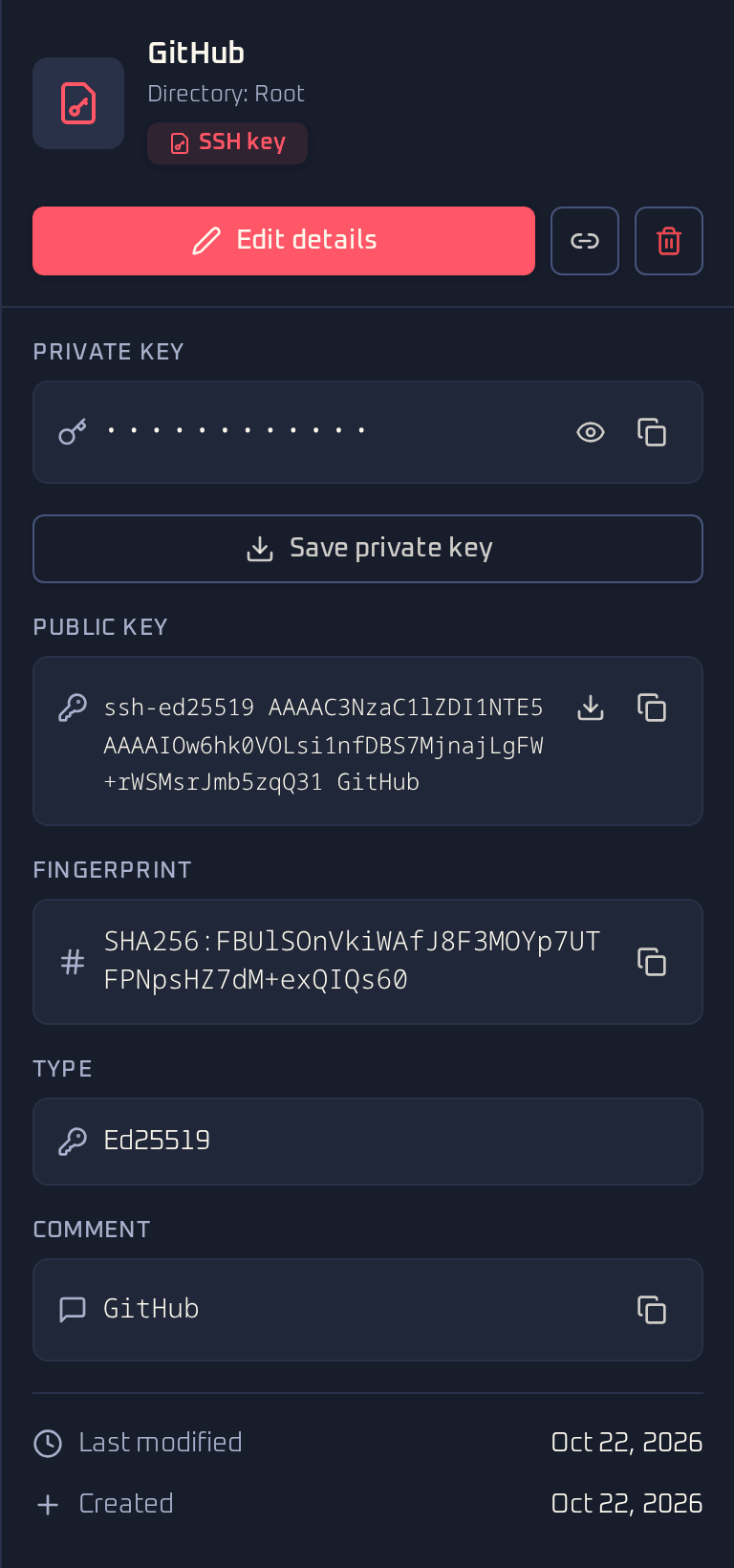
 Open the item and choose Save private key. You can set a passphrase for the file, or leave it blank for an unencrypted file. The file is a standard OpenSSH private key, the same format ssh-keygen writes. Save public key saves the matching .pub file.
- 01
Save the file in
~/.ssh, for example as~/.ssh/id_ed25519. - 02
Restrict its permissions with
chmod 600 ~/.ssh/id_ed25519. OpenSSH refuses private keys other users can read. - 03
Check it with
ssh-keygen -y -f ~/.ssh/id_ed25519, which prints the matching public key.
You can also reveal and copy the private key from the item, the same way you reveal a password. Every item in the vault stays exportable, and a full vault export includes your SSH keys.
To use a key on a Linux machine without saving it there, use the SSH agent. It asks your phone or the web app to approve each signature.
The web app's security report flags RSA keys shorter than 3072 bits. Replace them with a new Ed25519 key when you can.
SSH keys from other password managers
SSH key items in Bitwarden and 1Password exports become SSH key items in Cryptex Vault. If a key can't be read, the import shows a notice and keeps the key text on the item as a hidden field, so nothing is lost. See the import guide for the rest of the process.