
Choose the matching export
Choose the format that matches your export. The limits below describe what Cryptex Vault can import from each file.
- Cryptex Vault JSON
Imports credentials and directories. Deleted items are skipped. This is a data import, not a full vault restore; use the backup guide for encrypted .cryx files.
- Bitwarden JSON
Requires a JSON export that is not encrypted. Attachments and linked custom fields are not imported. Supported ECDSA P-256 passkeys can be imported, one per item. Unsupported or extra passkeys are saved as custom fields, not usable passkeys. Unsupported URL matching rules are also saved as text, not used for autofill. Card details and password history become custom fields; organization and collection IDs are copied as text, not sharing permissions.
- 1Password 1PUX
Documents, attachments, and deleted items are not imported. Archived items are included with an Archived checkbox. Imports multiple URLs, supported one-time codes, and section fields. Password history and other field values are preserved as custom fields; their original behavior may not carry over. Passkeys are not imported as usable passkeys.
- 1Password CSV
Imports recognized login columns, notes, tags, and TOTP when present. Extra columns become text custom fields, and archived status becomes a checkbox. Documents and attachments are not imported. Use 1PUX for multiple URLs, vault folders, and richer item data.
- KeePass XML
Imports entries, group paths, text custom fields, and supported TOTP secrets. KeePass 2 XML entry history is saved as custom fields, not a browsable history. Attachments are not imported. Export XML first; encrypted KDBX files are not accepted.
- KeePass CSV
Accepts KeePass 1.x and KeePassXC CSV exports. Imports login details, notes, supported TOTP, and groups when present. Extra columns become text custom fields. Attachments and entry history are not carried in this format; use XML for richer item data.
- LastPass CSV
Imports recognized login columns, notes, and grouping as directories. Recognized structured secure notes become the matching item type with custom fields. Extra CSV columns are preserved as text. Attachments are not imported.
- Chrome CSV
Imports saved login details and notes when present. Passkeys, payment methods, and addresses are not imported. Each entry uses a single website URL.
- Firefox CSV
Imports saved login details. Browser-specific form matching information is saved as custom fields, not applied as autofill rules. Passkeys are not imported. Each entry uses a single website URL.
Run the import
These steps and screenshots show the Cryptex Vault web application.
On the Create tab, find Import existing passwords and choose Import. You can review the import before creating the vault.
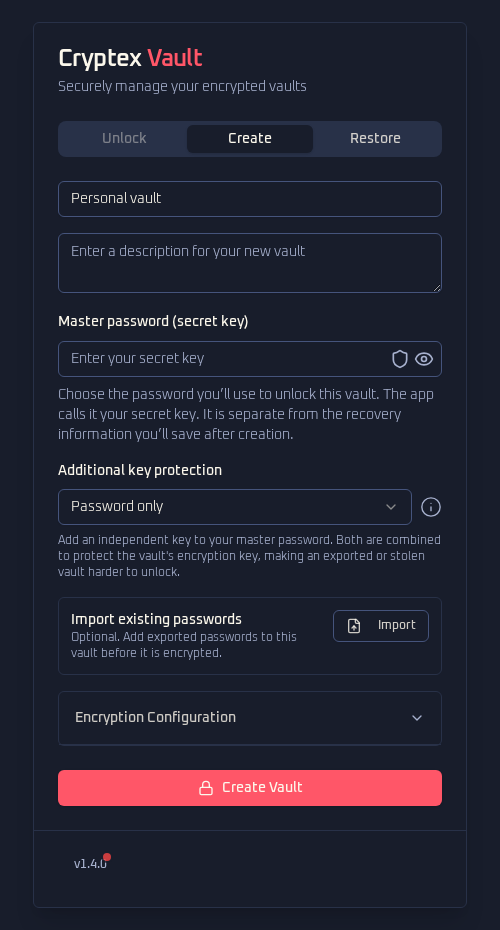 View full size
 - 01
Select the source and format that produced the export.
- 02
Choose the export file. Cryptex Vault parses it locally.
- 03
Review Before you import: items found, items that will or will not be added, and folders that will be created. Check the lists of skipped items, information saved differently, and information that cannot be carried over.
- 04
If asked, confirm that you understand the listed omissions and changes. Choose Import only when you are ready to accept them.
Import adds credentials to the vault. It does not use matching titles to replace existing credentials, so importing the same file again can create duplicates.
Files must be no larger than 1 GB and match the selected export format. If validation fails, nothing is imported. Export again from the source app rather than renaming columns to make an unrelated file fit.
Check what arrived
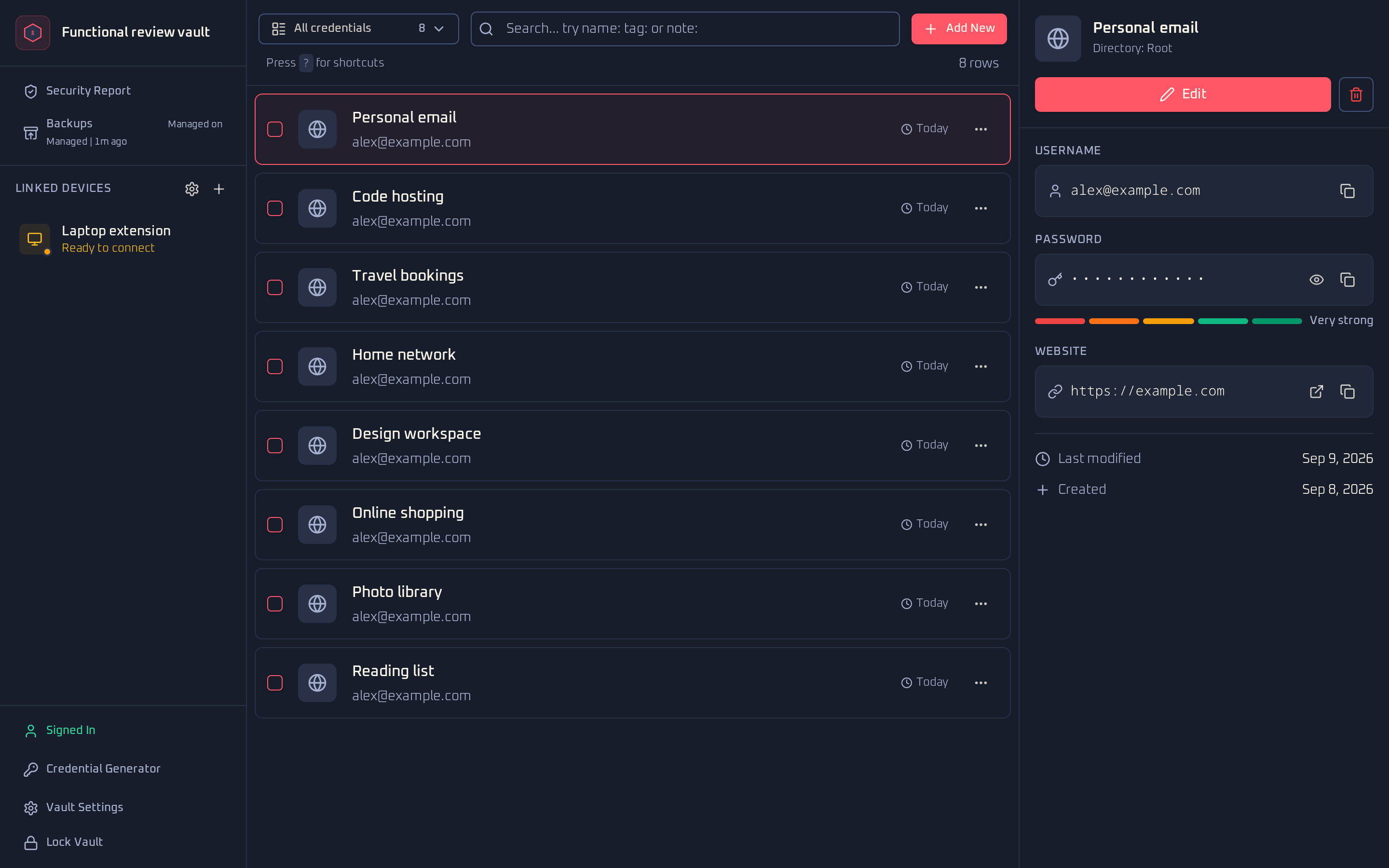
Open a sample from every important folder or account type. Check the username, password, primary URL, extra URLs, notes, custom fields, and TOTP where you use them. Warnings may point to fields or item types that could not be carried over. For example, 1Password attachments and documents are not imported.
Try a few logins manually before setting up the Chromium Extension. A successful item count alone does not prove every field maps the way you expect.
 View full size
 Use a trial vault first
Keep the source password manager and its original data. Import into a separate Cryptex Vault, check representative entries, and download a .cryx backup. Only then decide whether to make Cryptex Vault your primary copy.
If you need to leave later, Vault Settings can export Cryptex Vault JSON. That JSON is also plaintext and needs the same careful handling.