
Install the Chromium Extension
The Chromium Extension is designed for desktop Chrome, Microsoft Edge, and Brave. Install it from the Chrome Web Store. Firefox support is planned and is not available yet.
- 01
Open the official Chrome Web Store listing and follow your browser's installation prompt. In Chrome, choose Add to Chrome. Edge may ask you to allow extensions from other stores.
- 02
Pin Cryptex Vault to the toolbar so it is easier to open and use.
- 03
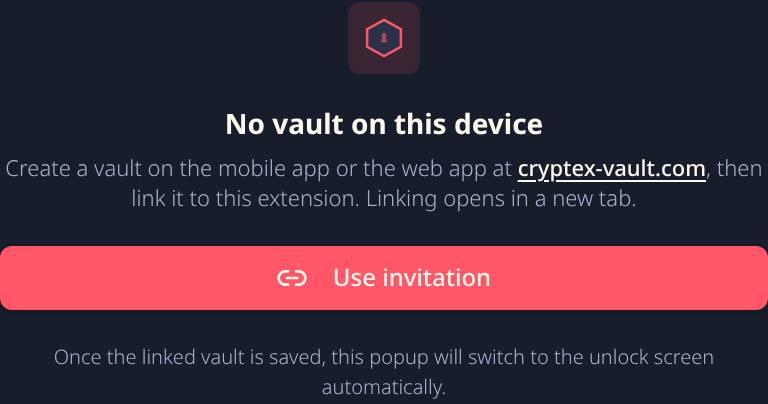
Open the extension. A new installation shows No vault on this device.
 View full size
 Link the extension to your vault
Link the extension to your existing vault to synchronize your passwords between them. Each keeps its own local vault.
Follow the Chromium Extension linking instructions, then return here to set up autofill. The linking guide covers connection requirements and creating an invitation too.
Fill a login
- 01
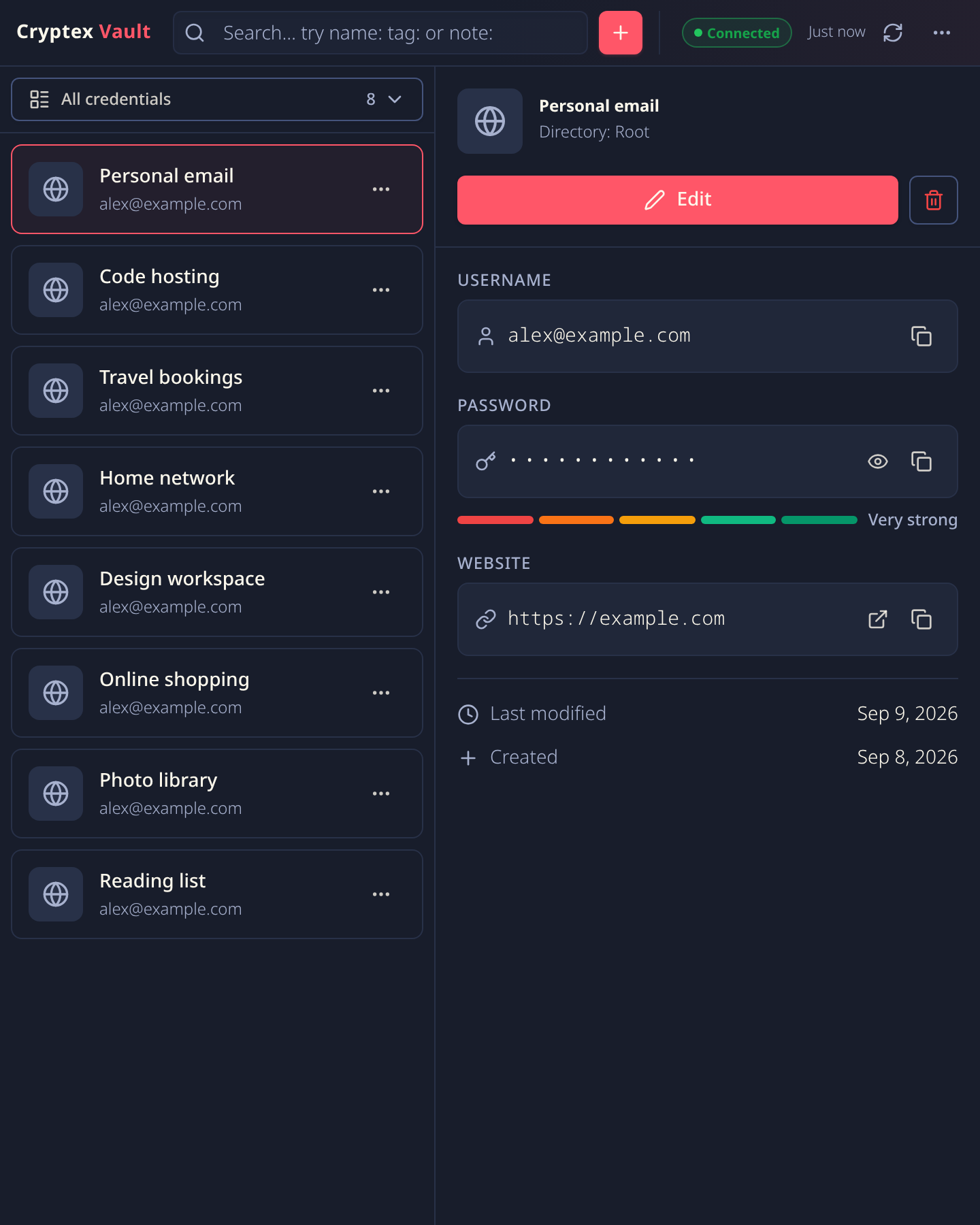
Open the toolbar popup and unlock the extension vault with its passphrase.
- 02
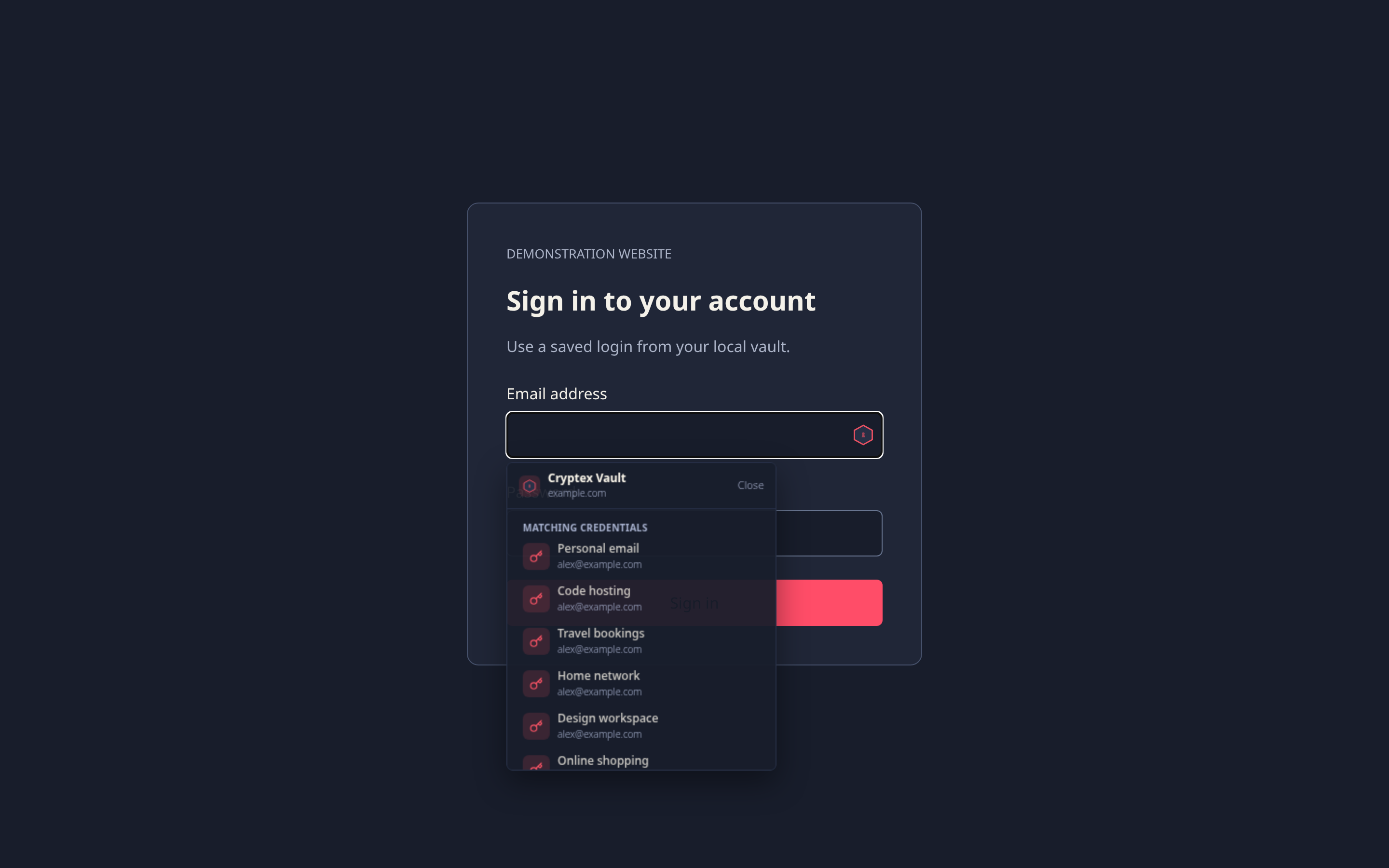
Open a saved site and focus its username or password field.
- 03
Choose the Cryptex Vault icon in the field, then select the matching credential.
- 04
Check the selected account and submit the site’s form yourself.
When you submit a new login, Cryptex Vault may ask whether to save it. Review the captured site and username before choosing Save. If no picker appears, open the popup to confirm that the vault is unlocked and the saved URL matches the site.
 View full size
  View full size
 Change this vault's protection
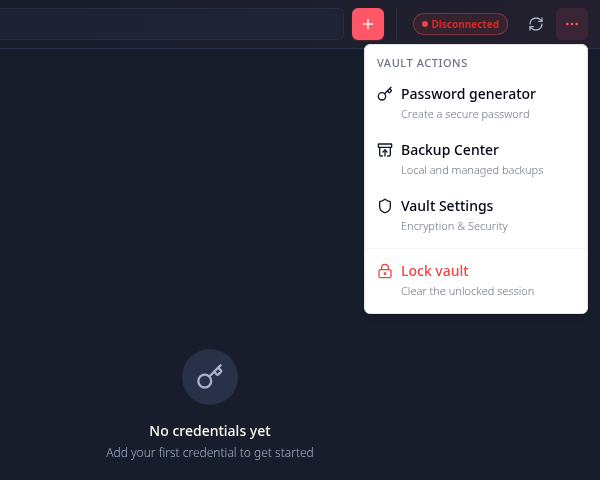
In the unlocked extension, open the menu and choose Vault Settings, labeled Encryption & Security. You can change the master password or protection phrase and generate a new recovery code. Save any newly displayed secrets before closing the dialog.
Optional encryption-key rotation re-encrypts this device's vault and generates a new recovery code. It does not rotate keys on your other devices. Older backups keep their original protection; read the backup guidance before deleting old restore points.
What the extension can see
While unlocked, the extension can use credentials for sites you visit so it can fill them. Treat other installed browser extensions and the browser profile itself as part of your security boundary. Lock Cryptex Vault when you are finished on a shared machine.
The extension locks after 30 minutes of system idle. Closing its popup does not lock it immediately. Open the three-dot Vault actions menu and choose Lock vault when you need an immediate lock.
 View full size